Step 1: Navigate to the Match
Open the tournament and locate the specific match for which you would like to use the Chair Official View
Step 2: Open Match Settings
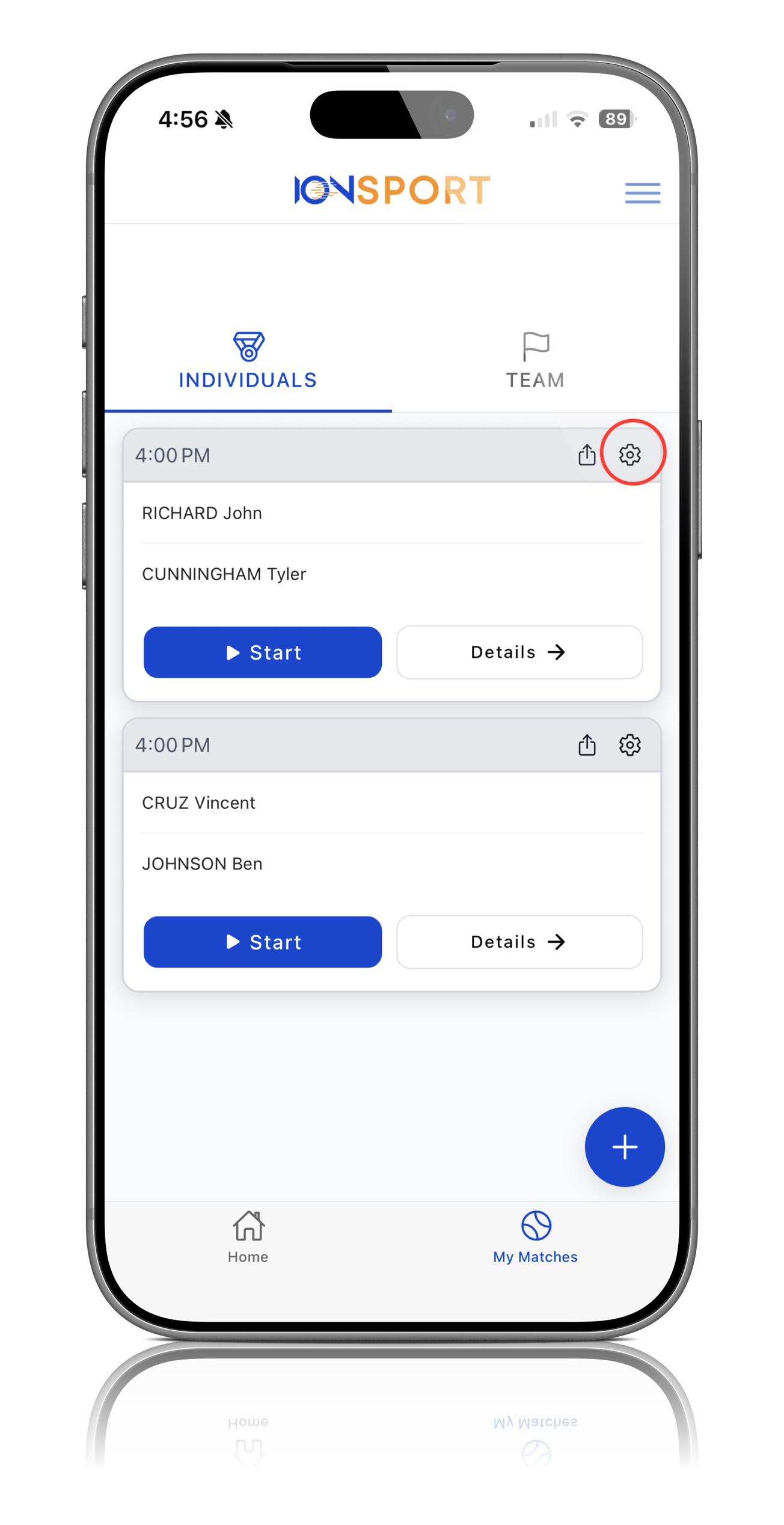
On the selected match card, click the Settings icon located in the top-right corner of that specific match
Step 3: Select Chair Official
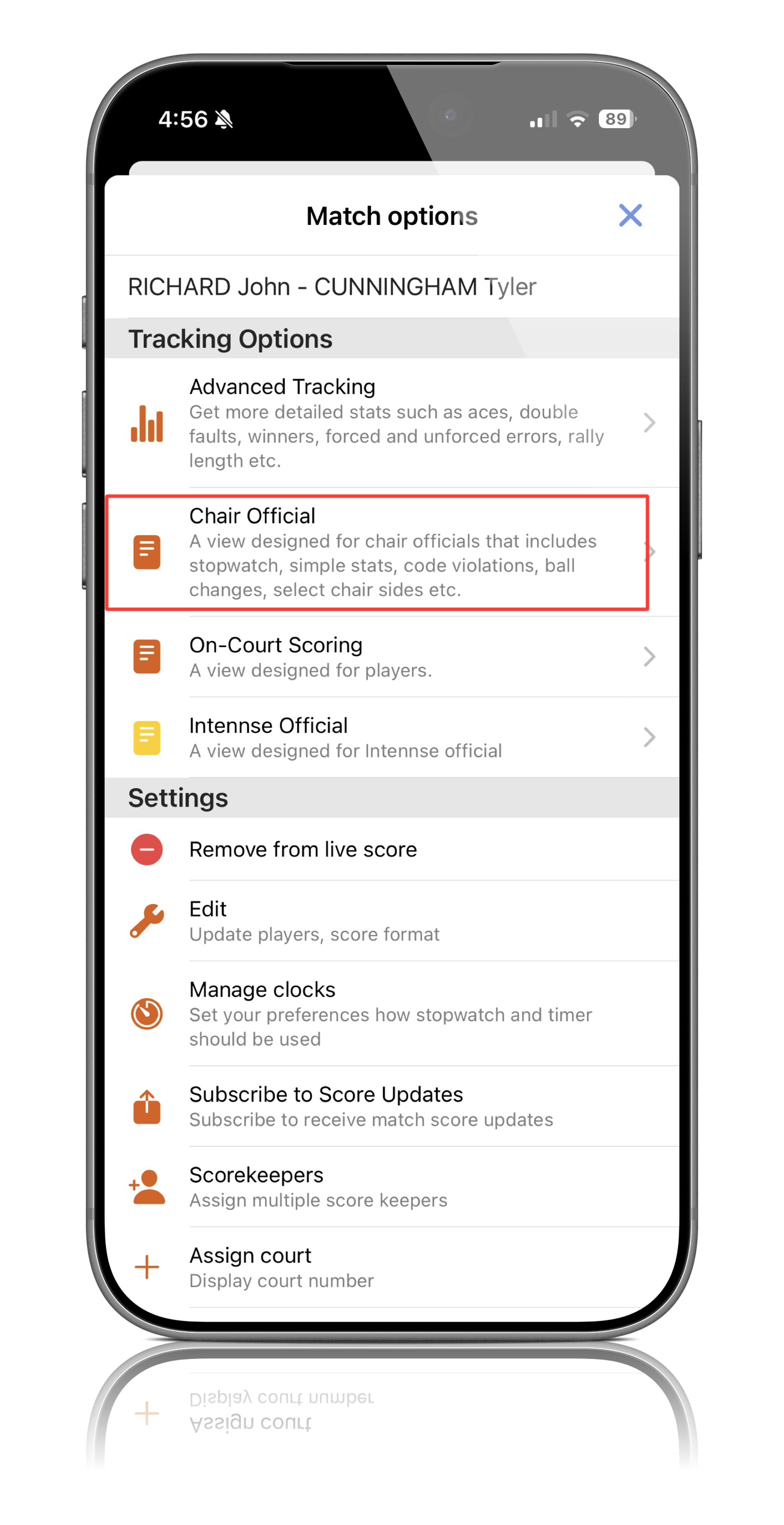
Within the match settings menu, locate and select the Chair Official option
Step 4: Enter Chair Official View
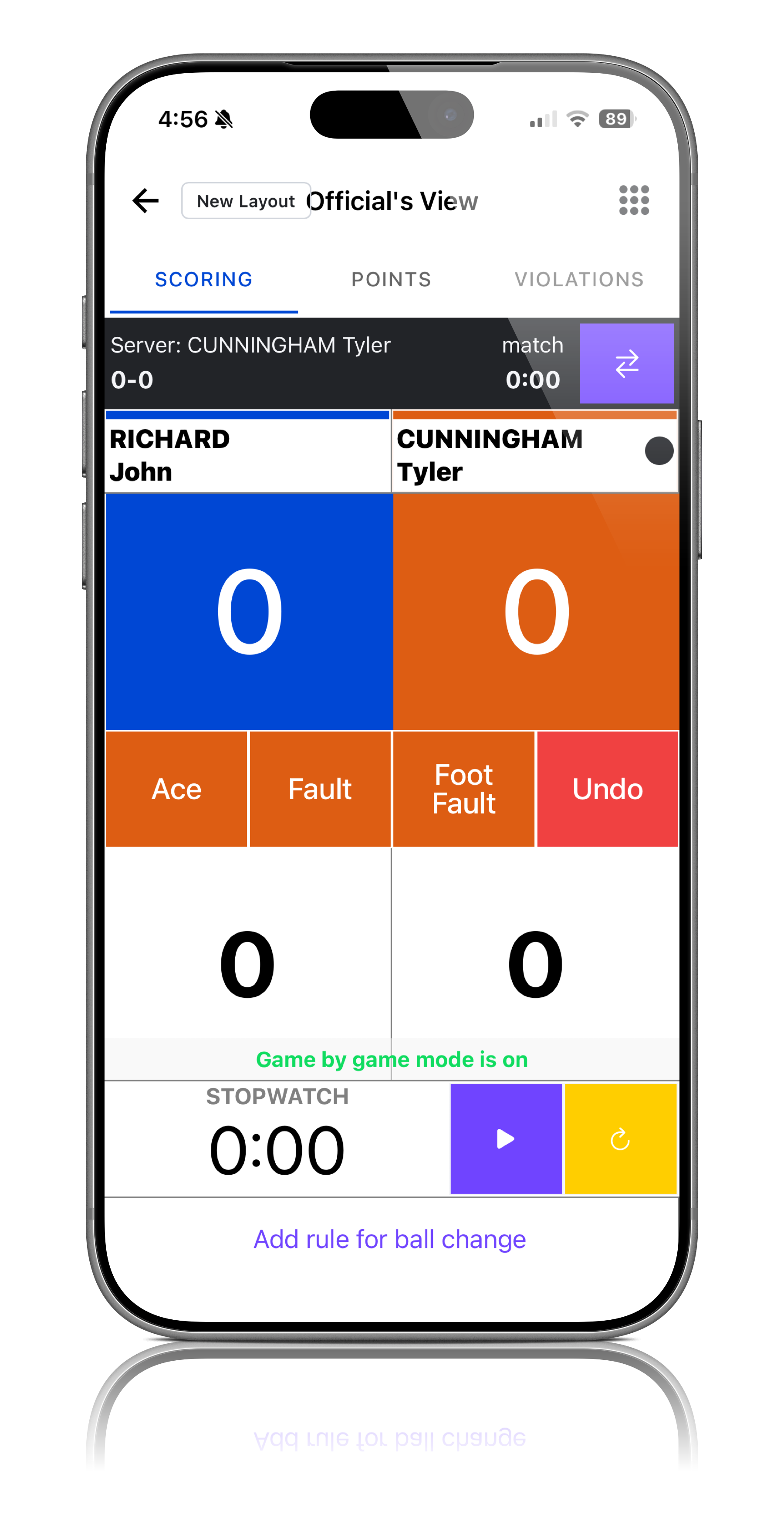
After selecting Chair Official, the system will open the Chair Official View. This view is optimized for use on a tablet and provides officials with the tools needed to manage and score the match from court side
Step 5: Begin Officiating the Match
Once in Chair Official View, the official can begin managing the match using the available scoring and officiating controls
Note: Chair Official View should be accessed from the settings menu of the specific match that the official will be overseeing.
Was this article helpful?
That’s Great!
Thank you for your feedback
Sorry! We couldn't be helpful
Thank you for your feedback
Feedback sent
We appreciate your effort and will try to fix the article