What to Do in the Case of a Player Default

Created by IONSport Support, Modified on Sun, 14 Jun at 11:43 AM by IONSport Support

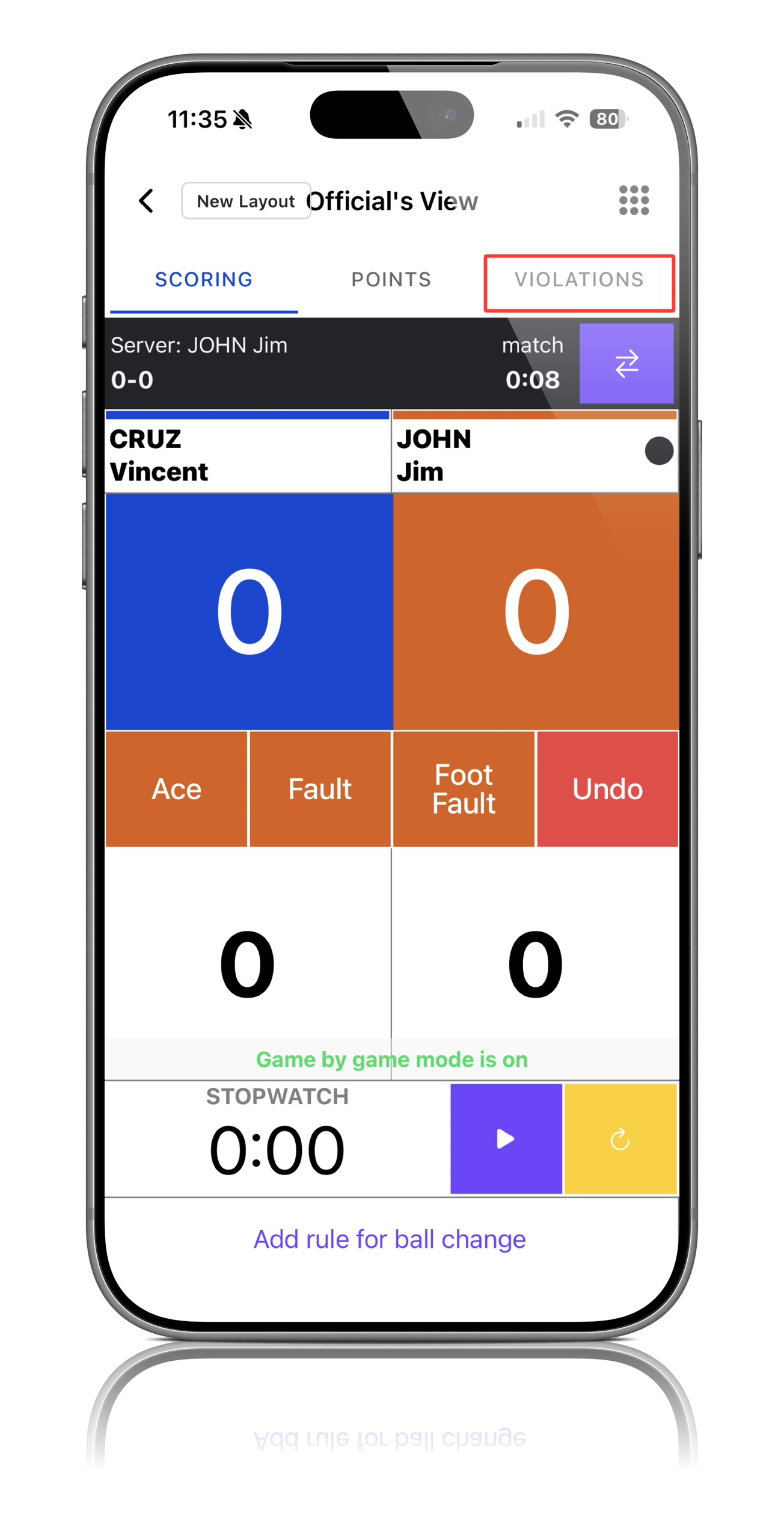
Step 1: Open Chair Official View

Navigate to the match and ensure you are in Chair Official View

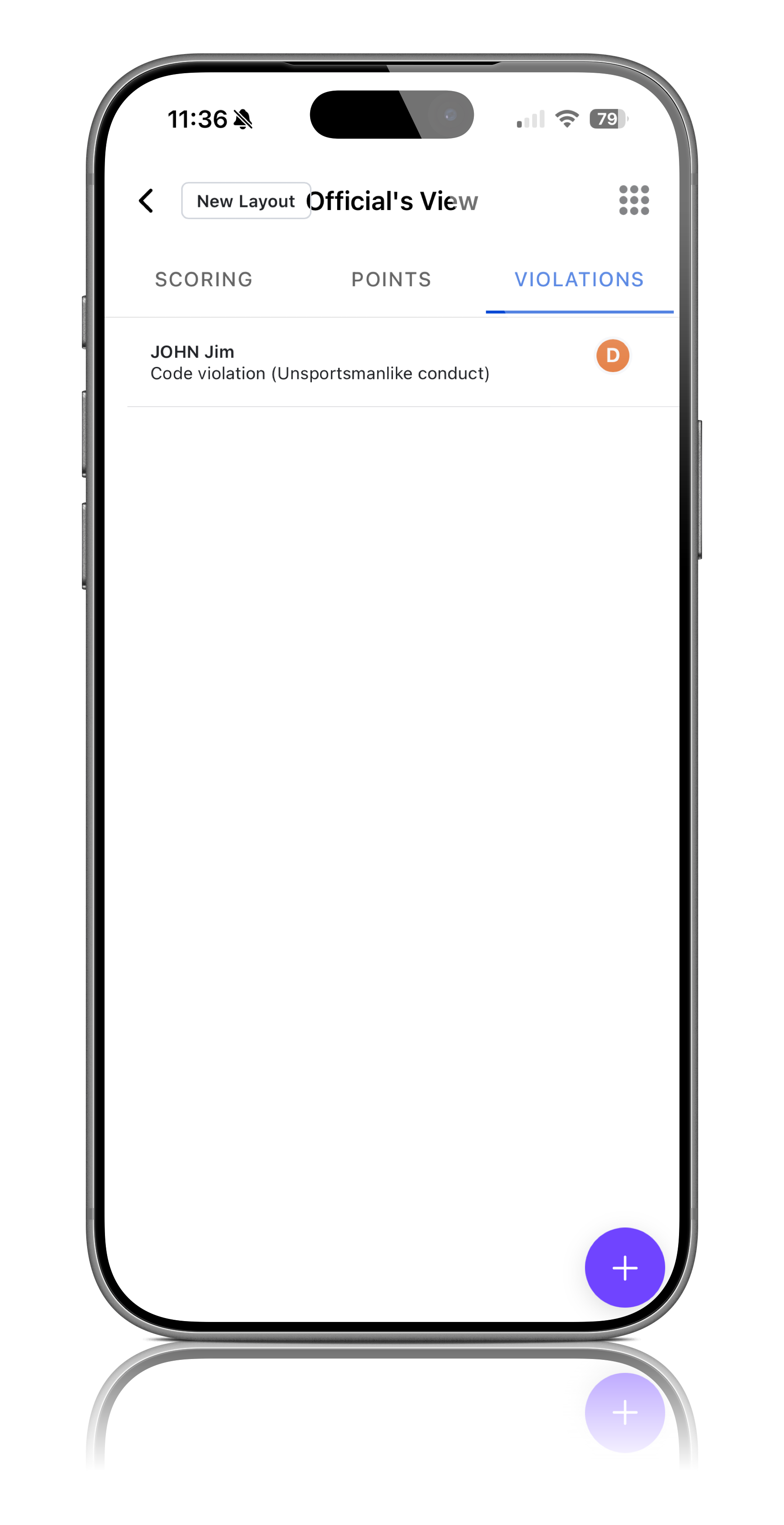
Step 2: Open the Violations Tab

Within Chair Official View, select the Violations tab

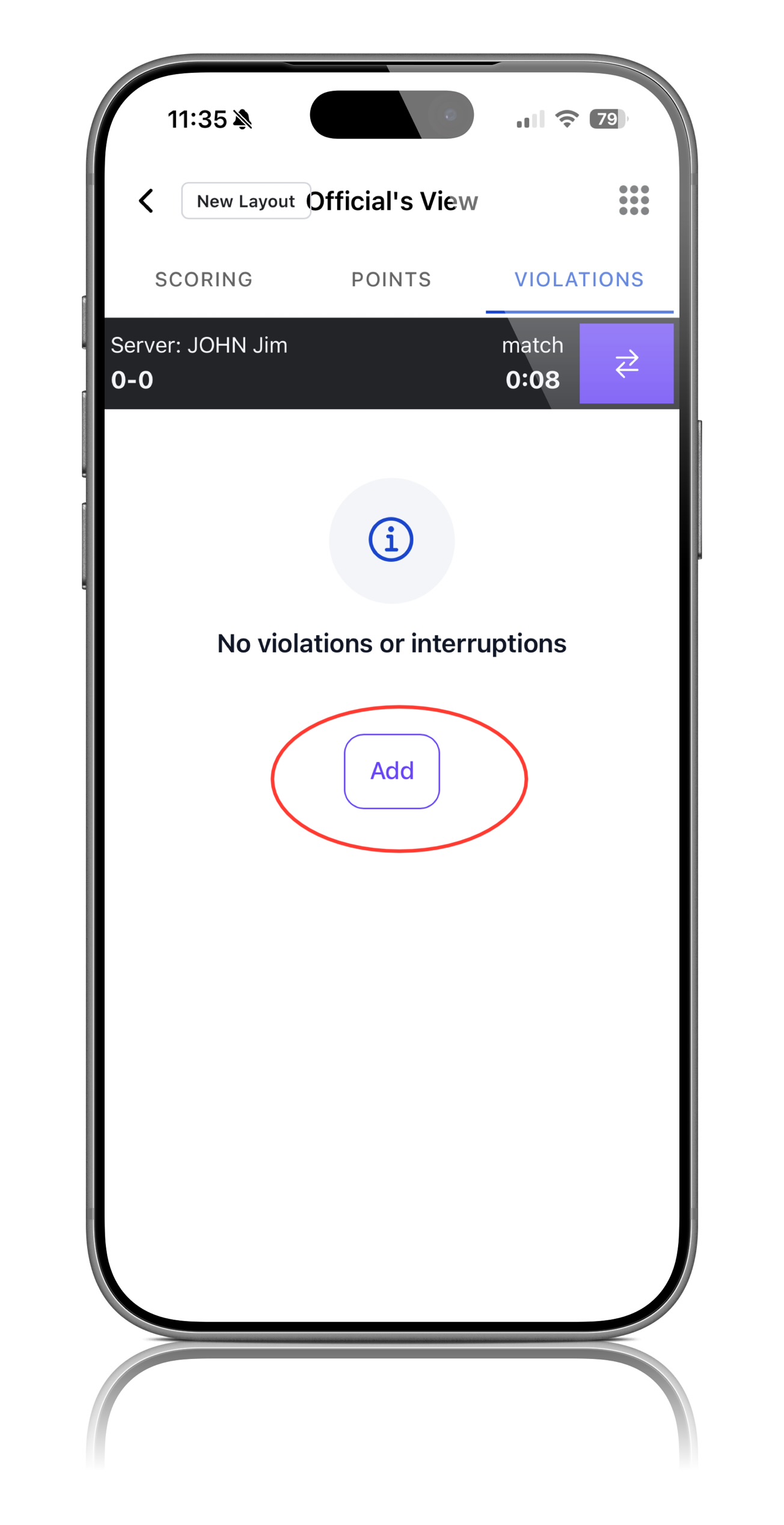
Step 3: Add a Violation

Click Add to create a new violation entry

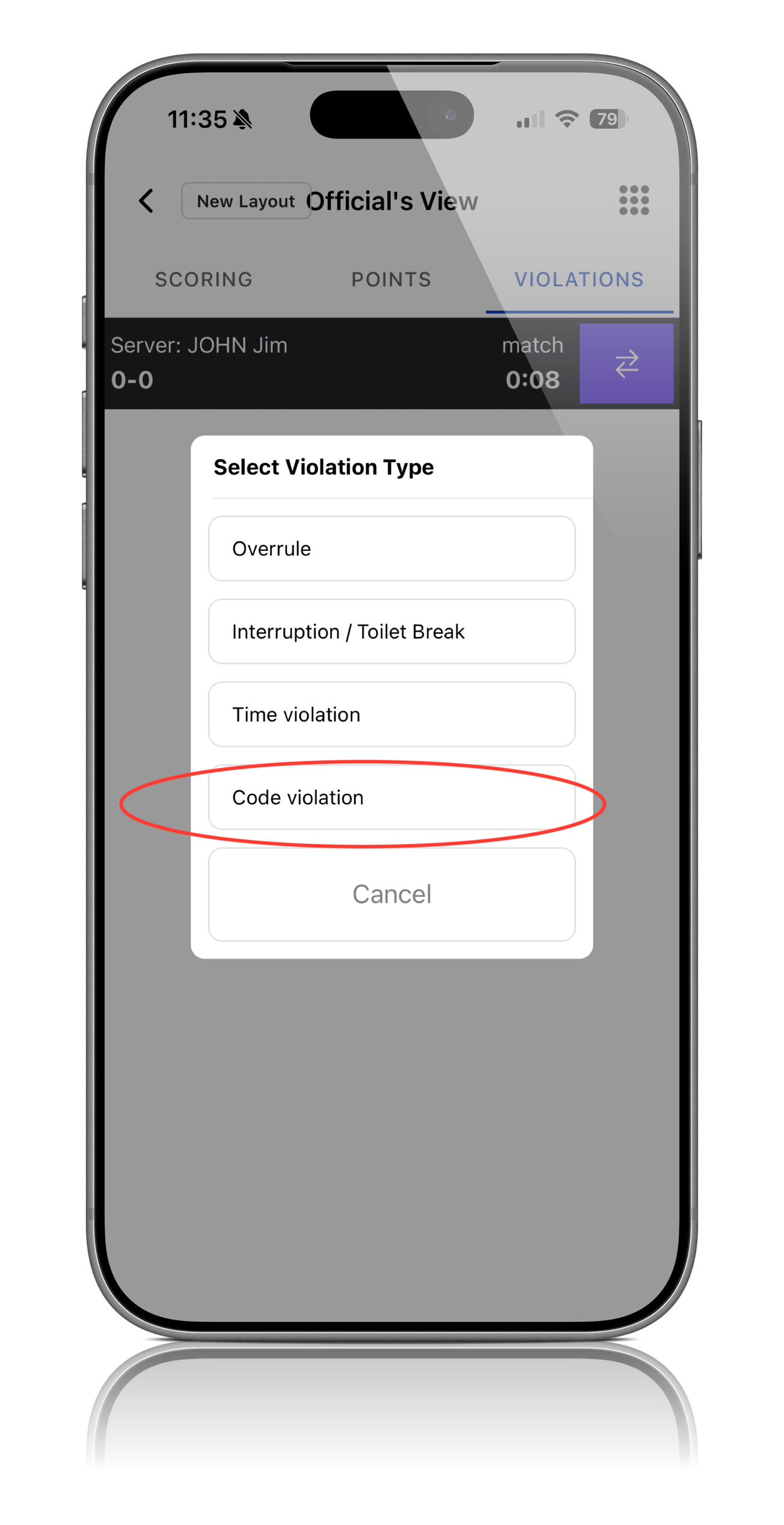
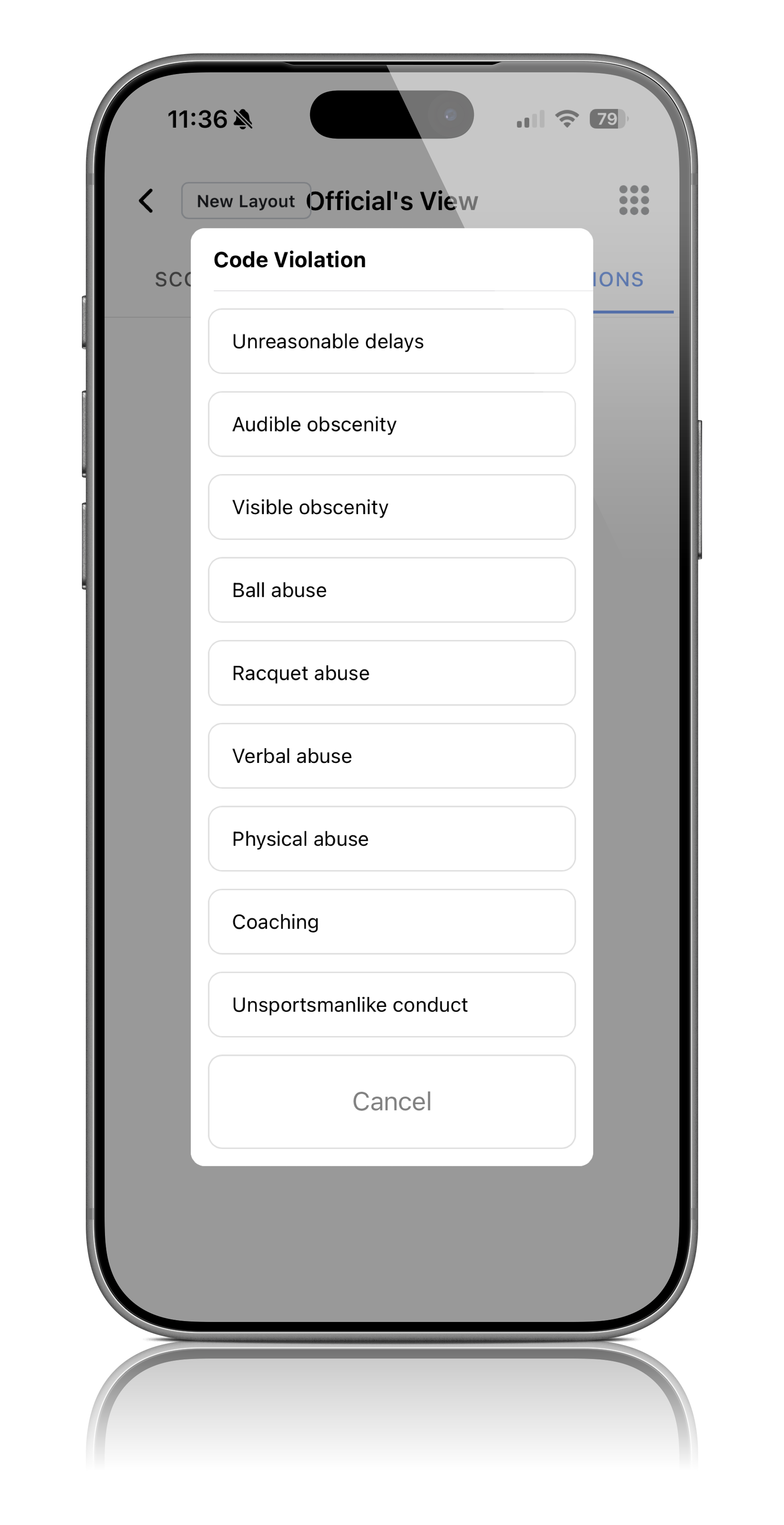
Step 4: Select Code Violation

You will be presented with several violation options. Select Code Violation

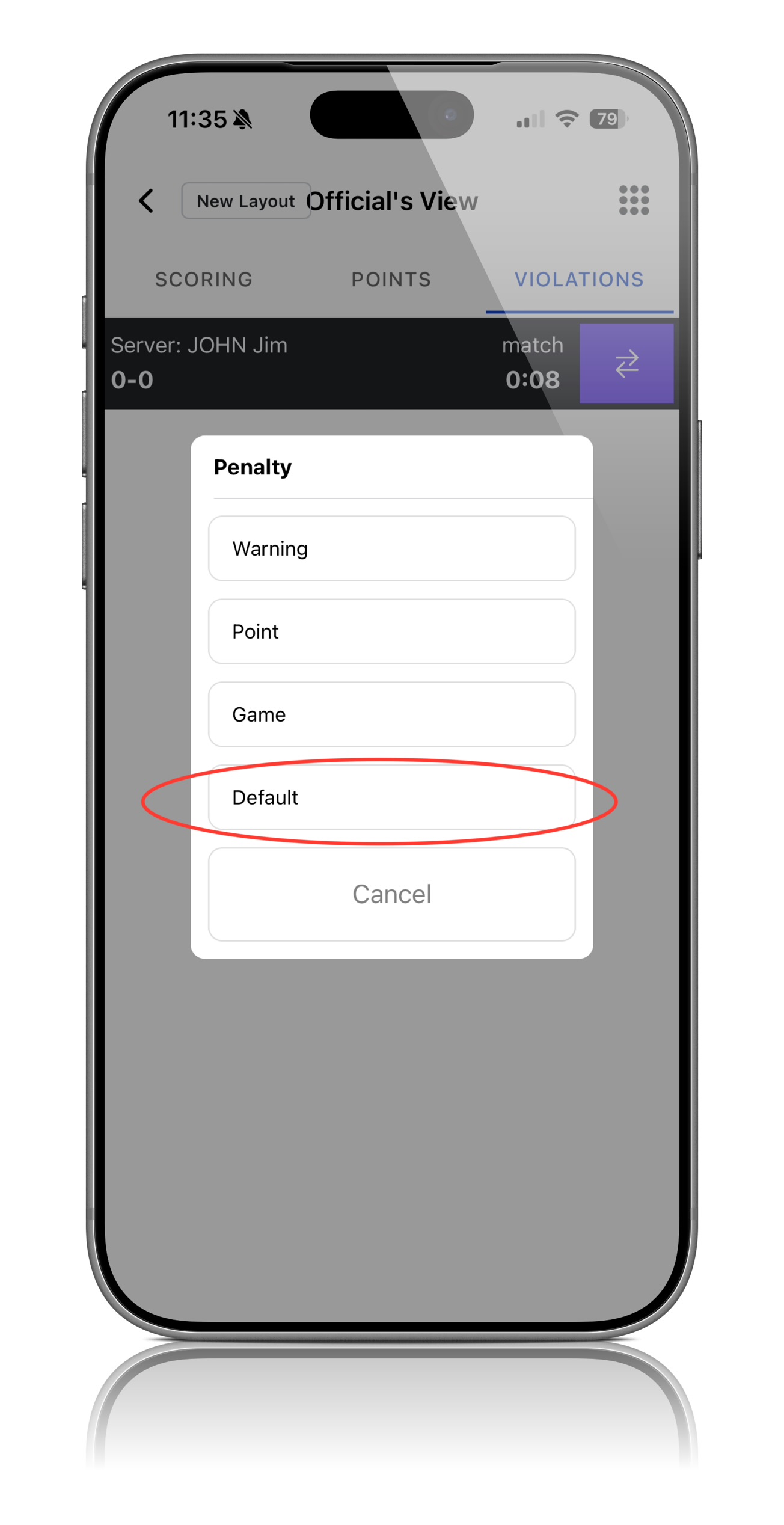
Step 5: Default the Player

Within the Code Violation options, select Default to default the player from the match

Step 6: Select the Reason for the Default
You will be presented with a list of reasons for the default. Select the option that best describes why the player is being defaulted

Step 7: Confirm the Default

Confirm the action to officially record the default and update the match status

Step 8: Verify the Match Status

Review the match details to ensure the default has been recorded correctly

Note: Player defaults can only be recorded through the Violations section while operating in Chair Official View. Ensure the correct player is selected before confirming the default.

Was this article helpful?

That’s Great!

Thank you for your feedback

Sorry! We couldn't be helpful

Thank you for your feedback

Let us know how can we improve this article!

Select at least one of the reasons
CAPTCHA verification is required.

Feedback sent

We appreciate your effort and will try to fix the article