Step 1: Locate the Match
Open the tournament and locate the matches that you would like to etc score using the Roaming Umpire View
Step 2: Download the Match
Select and download the match to your device before beginning the scoring process
Step 3: Start the Match
Once the match has been downloaded, select Start Match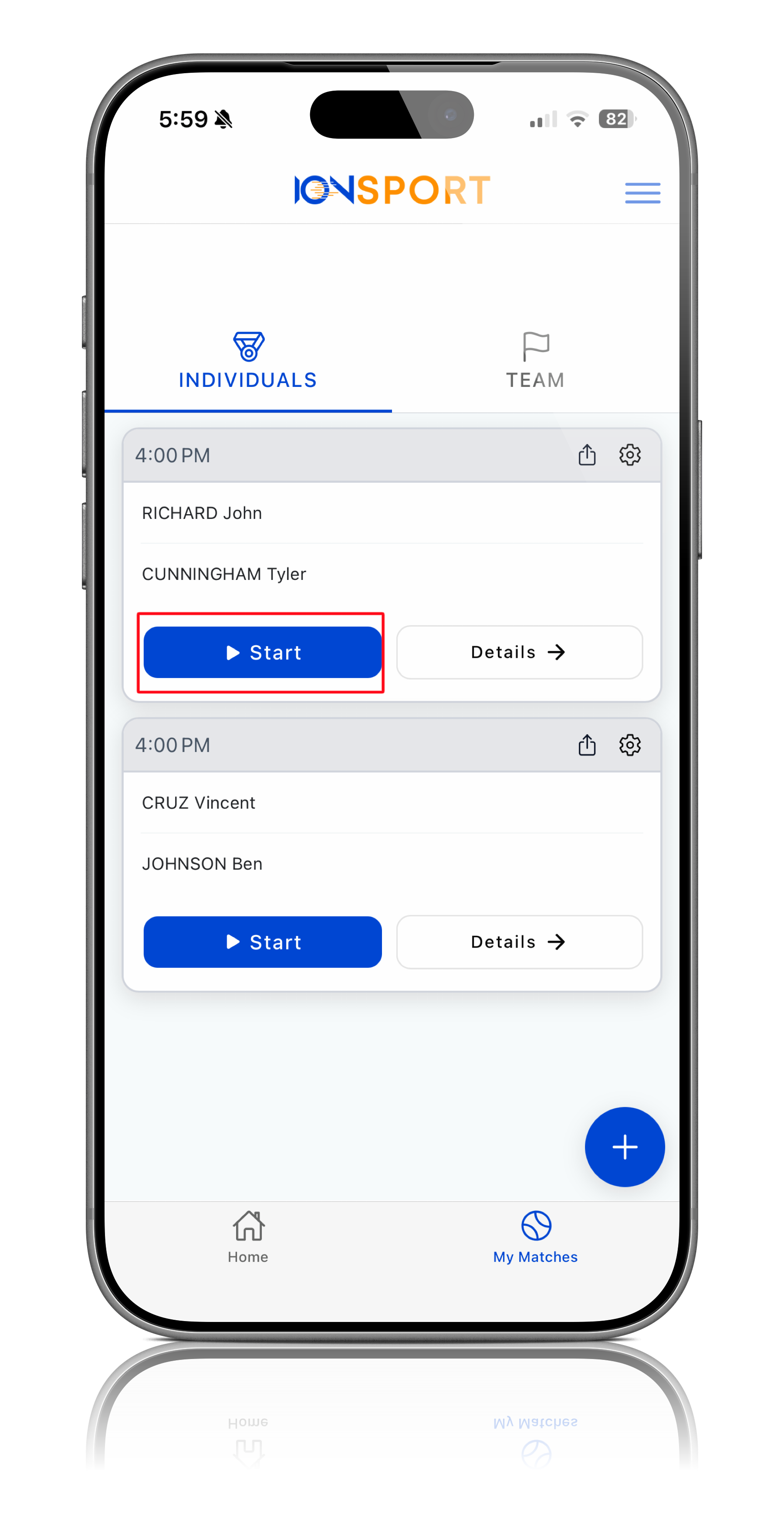
Step 4: Choose a Tracking Method
After starting the match, you will be prompted to select how you would like to track the match. The options that will appear are By Point, By Game, Advanced Stats, Umpire View, and On-Court Scoring.
Step 5: Select By Game
To use the Roaming Umpire View, select By Game from the available tracking options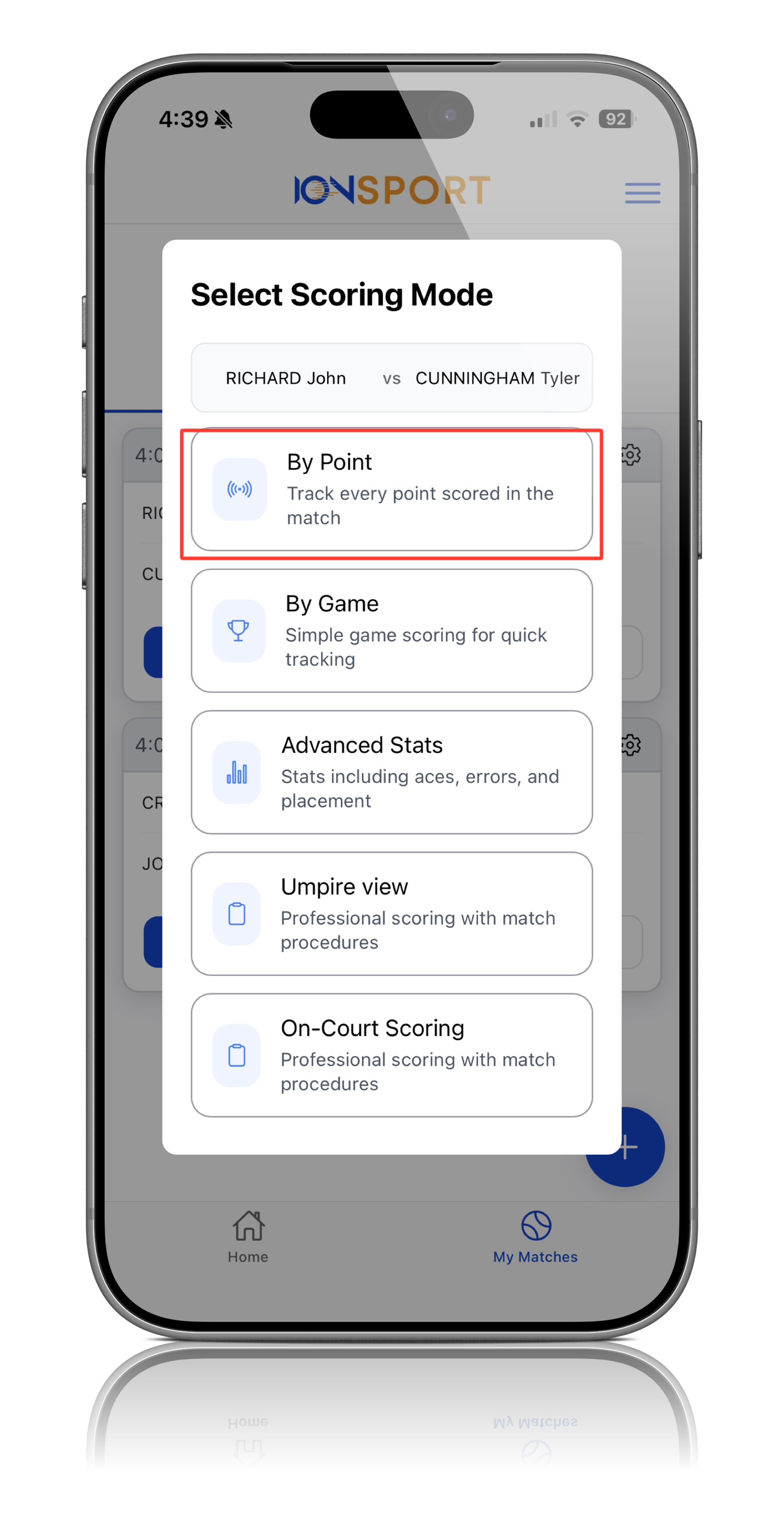
Step 6: Choose Whether to Track Serves
You will then have the option to track serves or not track serves.
- If you would like to track serves, select Individual and chose the player who will serve first- If you do not want to track serves, select Don't Track Serves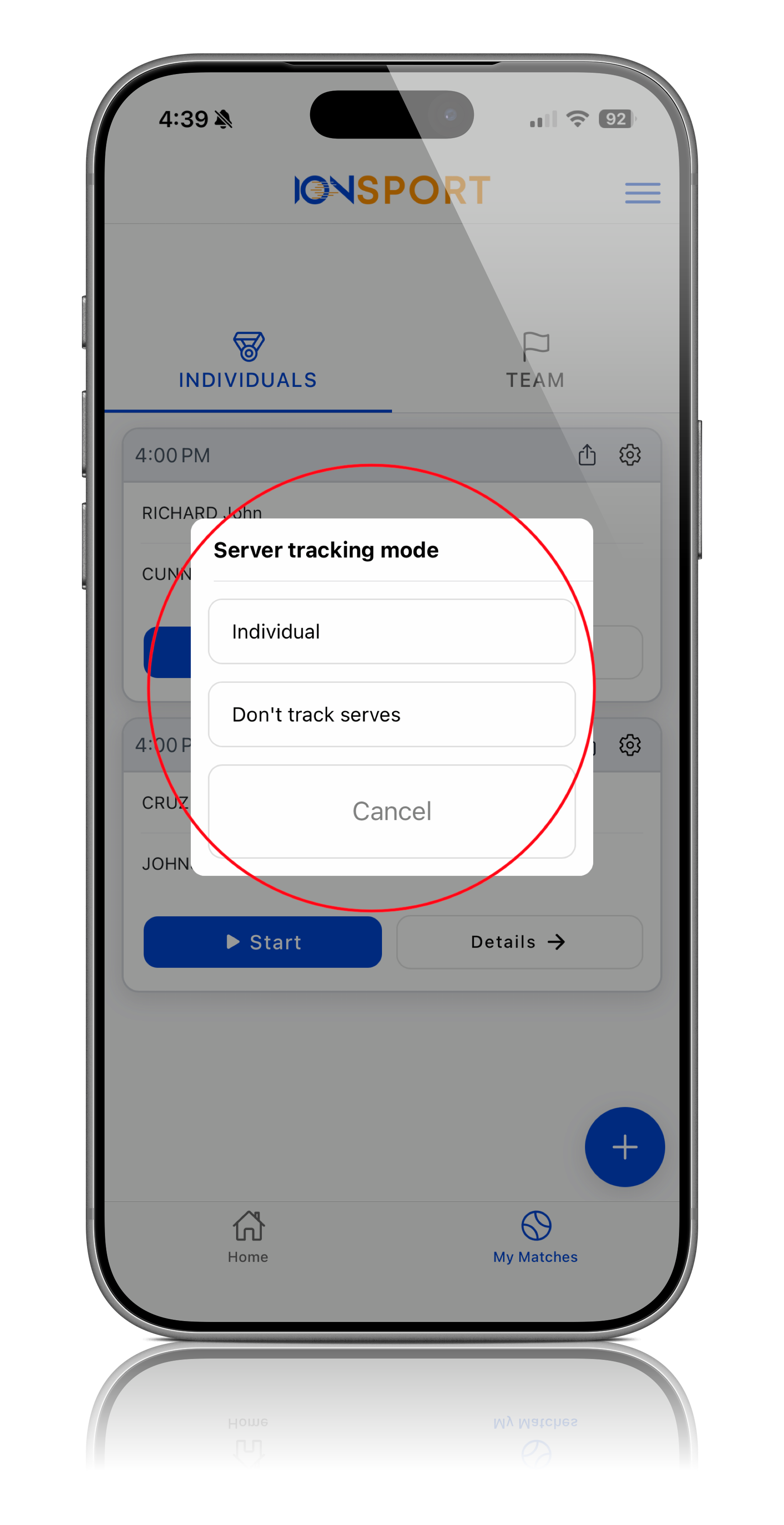
Step 7: Begin Scoring
Once By Game has been selected and your serve tracking preference has been selected, you can begin tracking and scoring the match using the Roaming Umpire View
Step 8: Score Additional Matches
The same process can be repeated for multiple matches, allowing roaming officials to manage and score several matches throughout the tournament.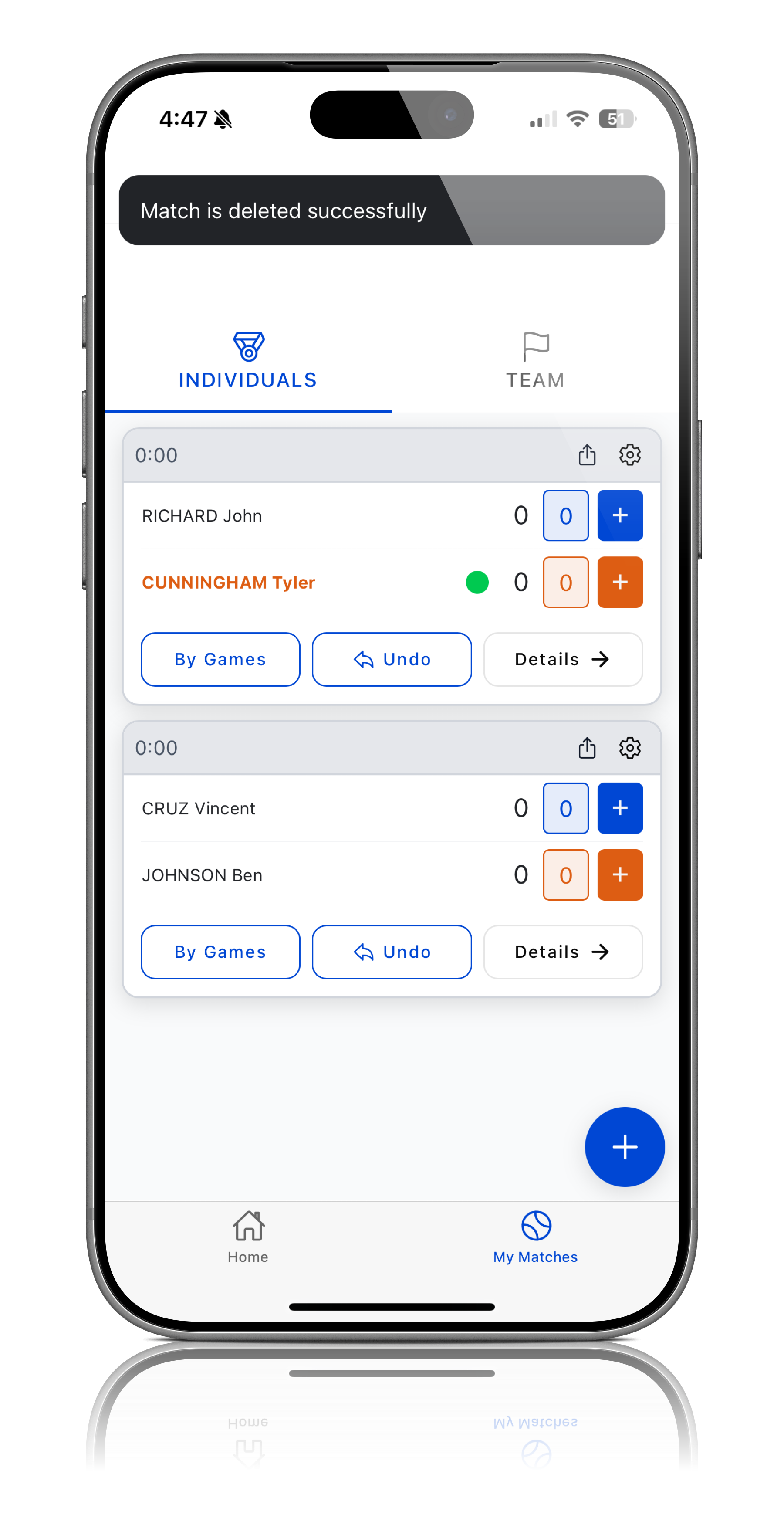
Note: The Roaming Umpire View is designed for officials overseeing multiple courts and allows matches to be scored efficiently without using the full Chair Official View.