Step 1
Download and open the IONSport application on your Smart TV.
OR
Open a web browser on the device connected to your display and navigate to:
tv.ioncourt.com
Step 2
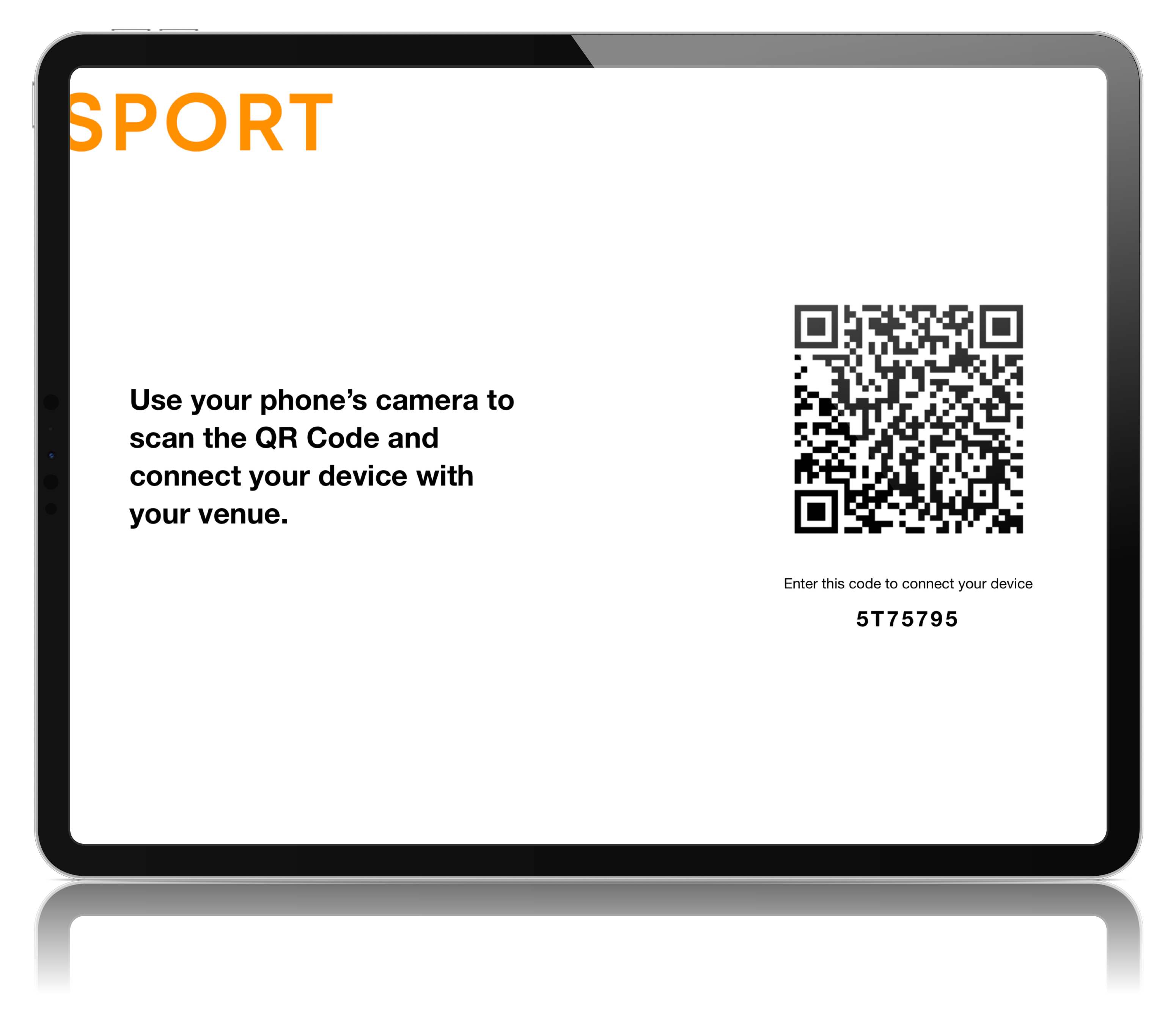
Once the application or website has loaded, a QR code and a 7-digit code will be displayed on the screen.
Step 3
Using your mobile device, scan the QR code.
Step 4
Enter the 7-digit code when prompted.
Step 5
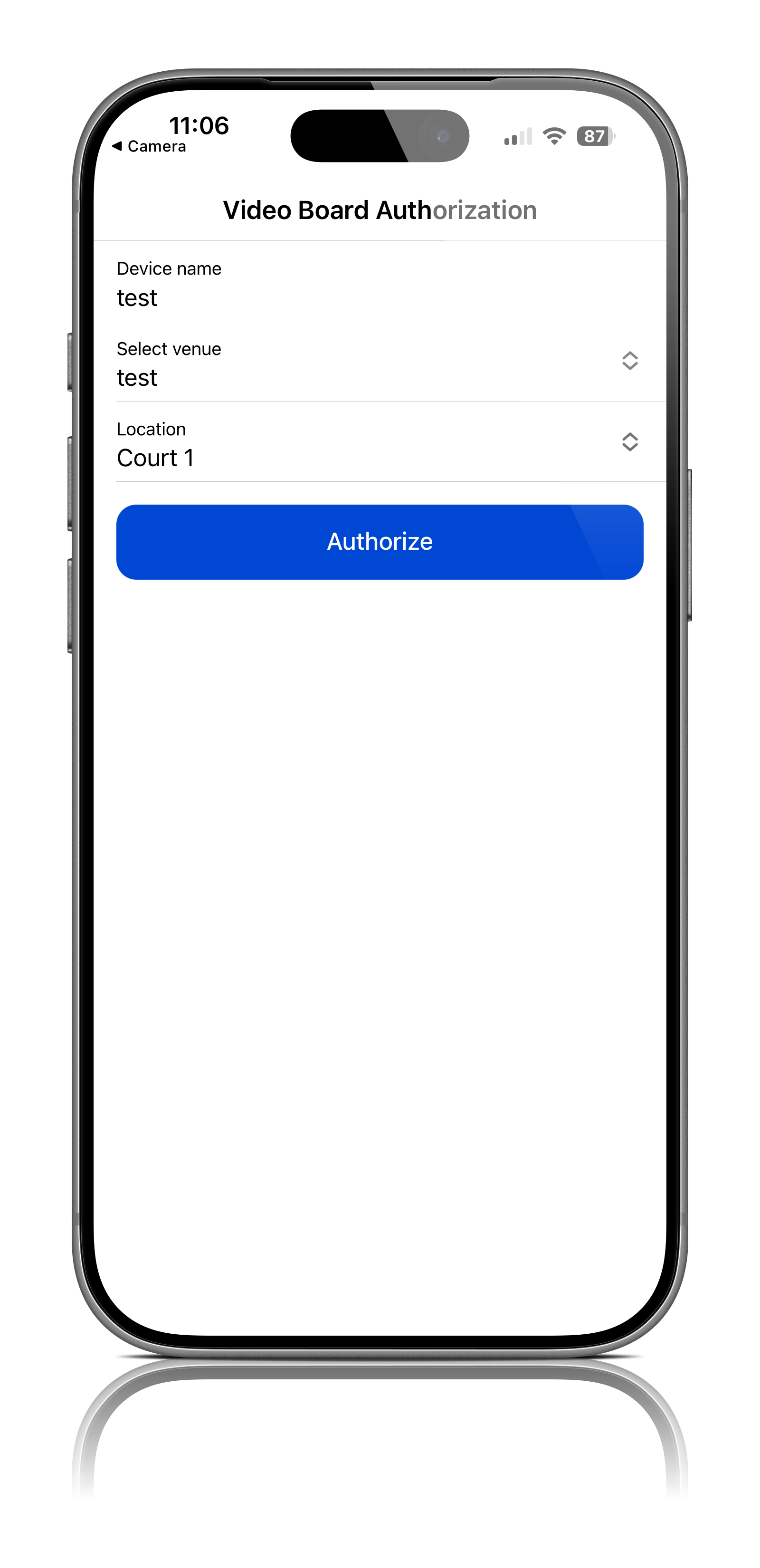
After successfully connecting the device, enter a name for the device.
Best Practice: Use a name that clearly identifies the location of the display (for example: Court 1 TV, Main Stadium Display, etc.).
Step 6
Select the appropriate venue from the list of available venues.
Step 7
Enter the location of the device.
Step 8
Click Authorize
Step 9
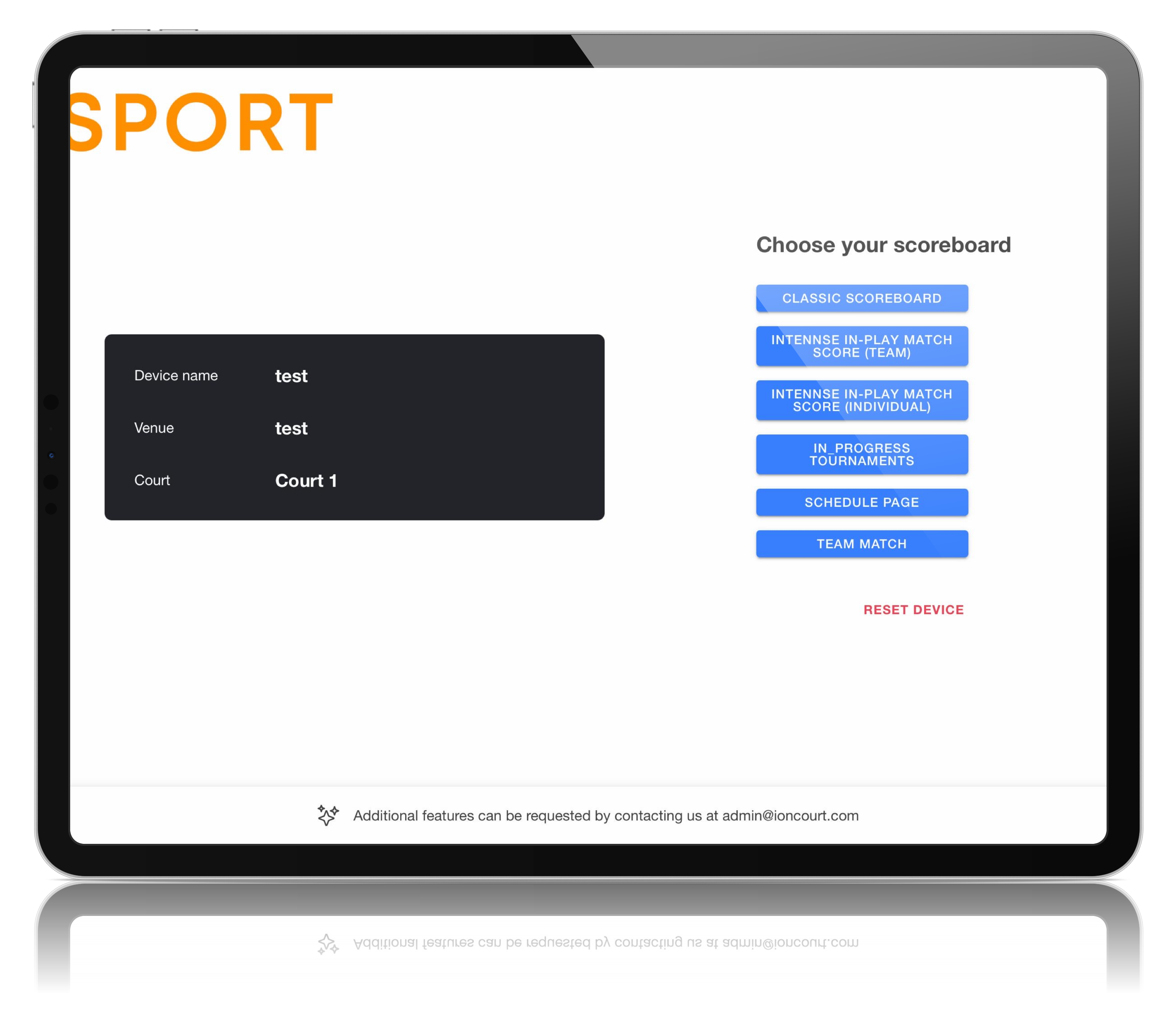
Choose the scoreboard view you would like to display on the screen.
The scoreboard device is now configured and ready to be assigned to a match.
Was this article helpful?
That’s Great!
Thank you for your feedback
Sorry! We couldn't be helpful
Thank you for your feedback
Feedback sent
We appreciate your effort and will try to fix the article