IONSport supports multiple video integrations that allow you to update the score directly on your stream, enhancing the fan experience.
We currently support video integration with:
Track.Tennis
PlaySight
Microframe
Save My Play
To connect your cameras, you will need:
A token from your streaming provider (this can be found in your streaming provider’s account settings).
An IONSport account with staff access.
1. Create an account / sign in
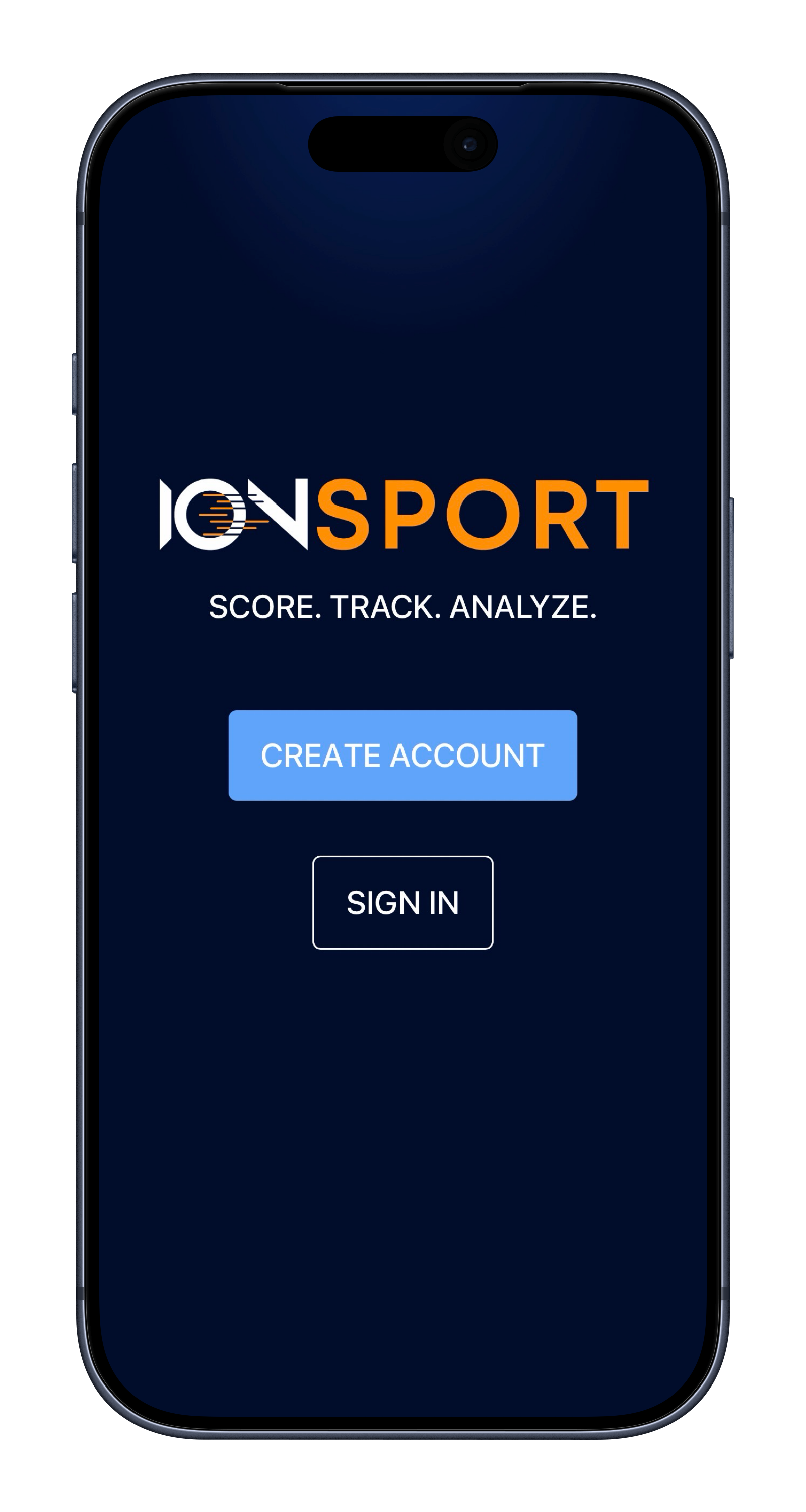
Download IONSport and tap Create Account or Sign In to get started.
2. Open the Menu
From the home screen, tap the ≡ menu icon in the top-right corner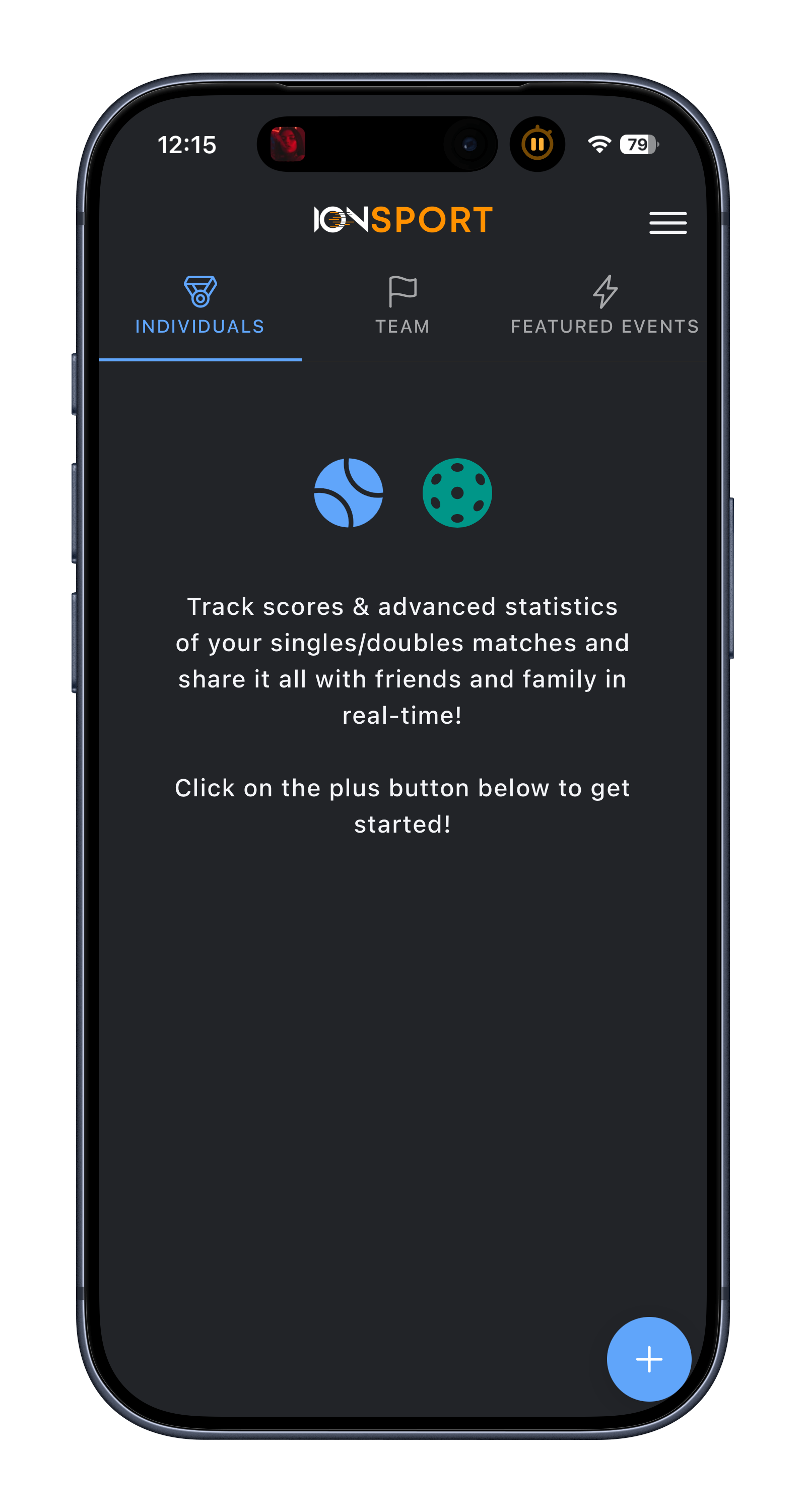
3. Click "My Teams"
In the side menu, tap My Teams to view and manage your teams.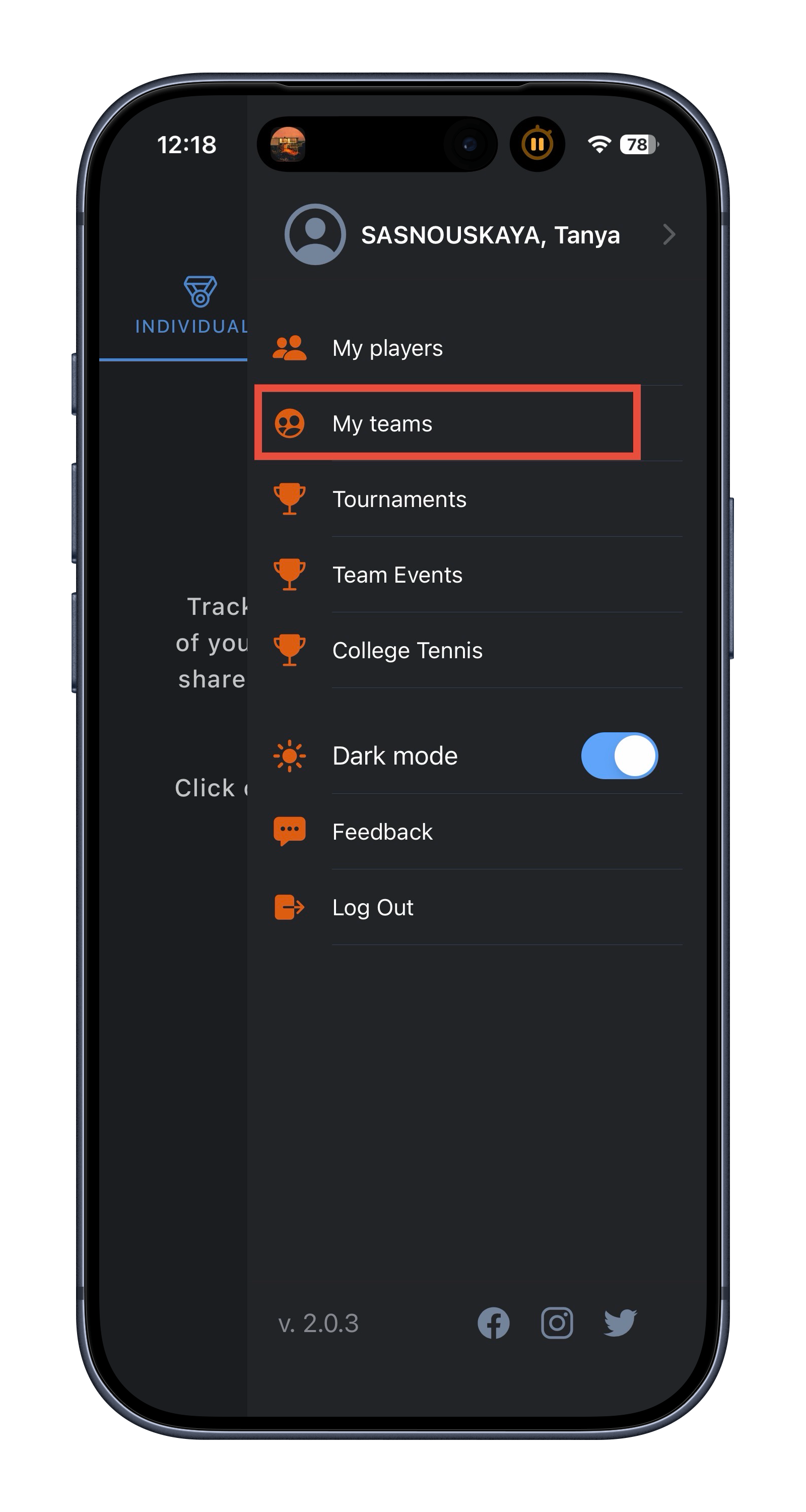
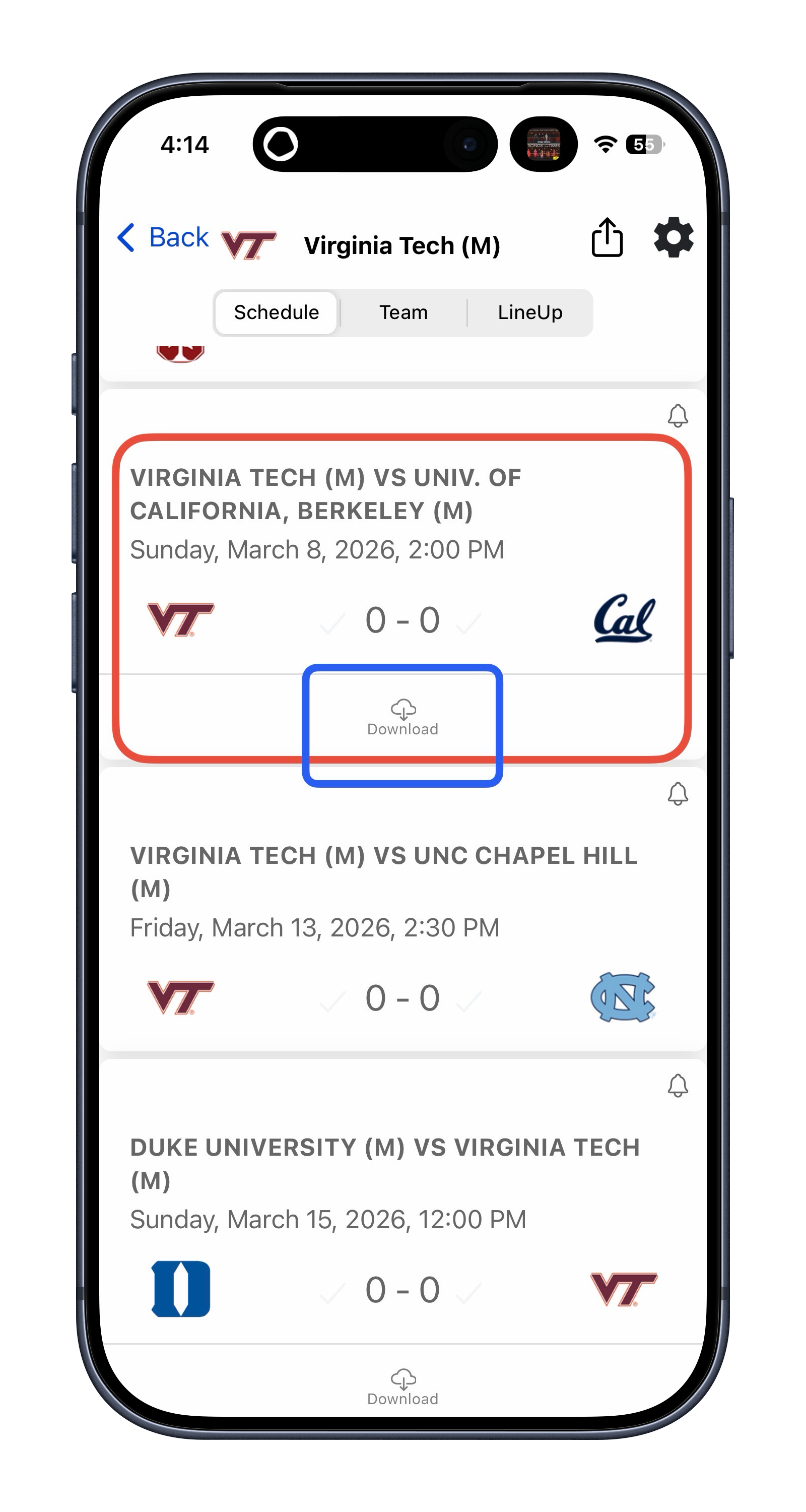
4. Click on you Team and download the match.
IMPORTANT [All matches in IONSport are synchronized with the ITA schedule and cannot be changed, removed, or added in IONSport. Any changes must be made in your team’s ITA account.]
5. Apply Line-Up
To connect a camera to a court, you must assign players to that court.
There are two ways to do this:
1. Apply a previously created line-up from your team account.
2. Assign players manually to the court.
5.1 To Apply Line up Click "More"
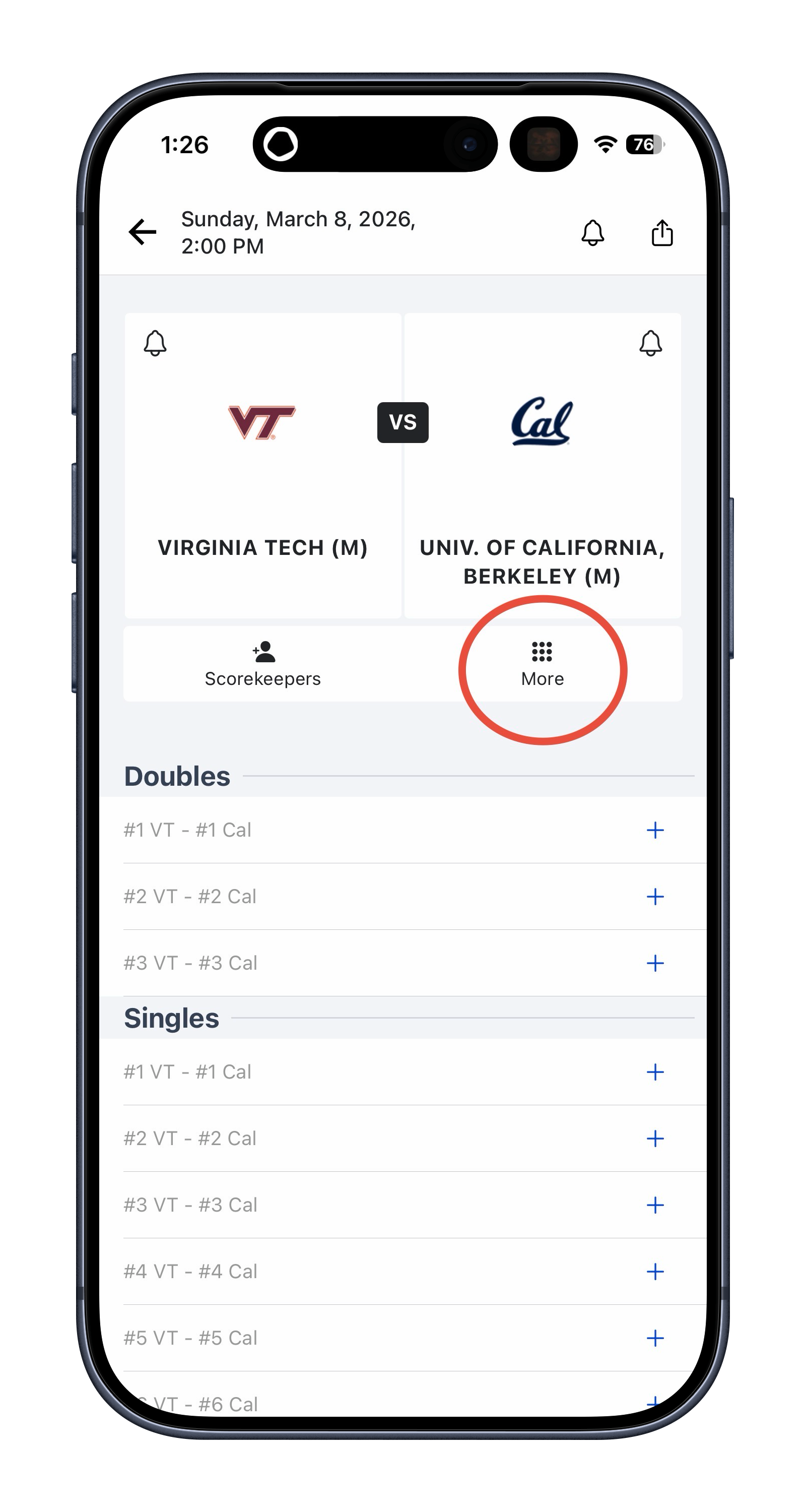
5.2 "Apply lineup"
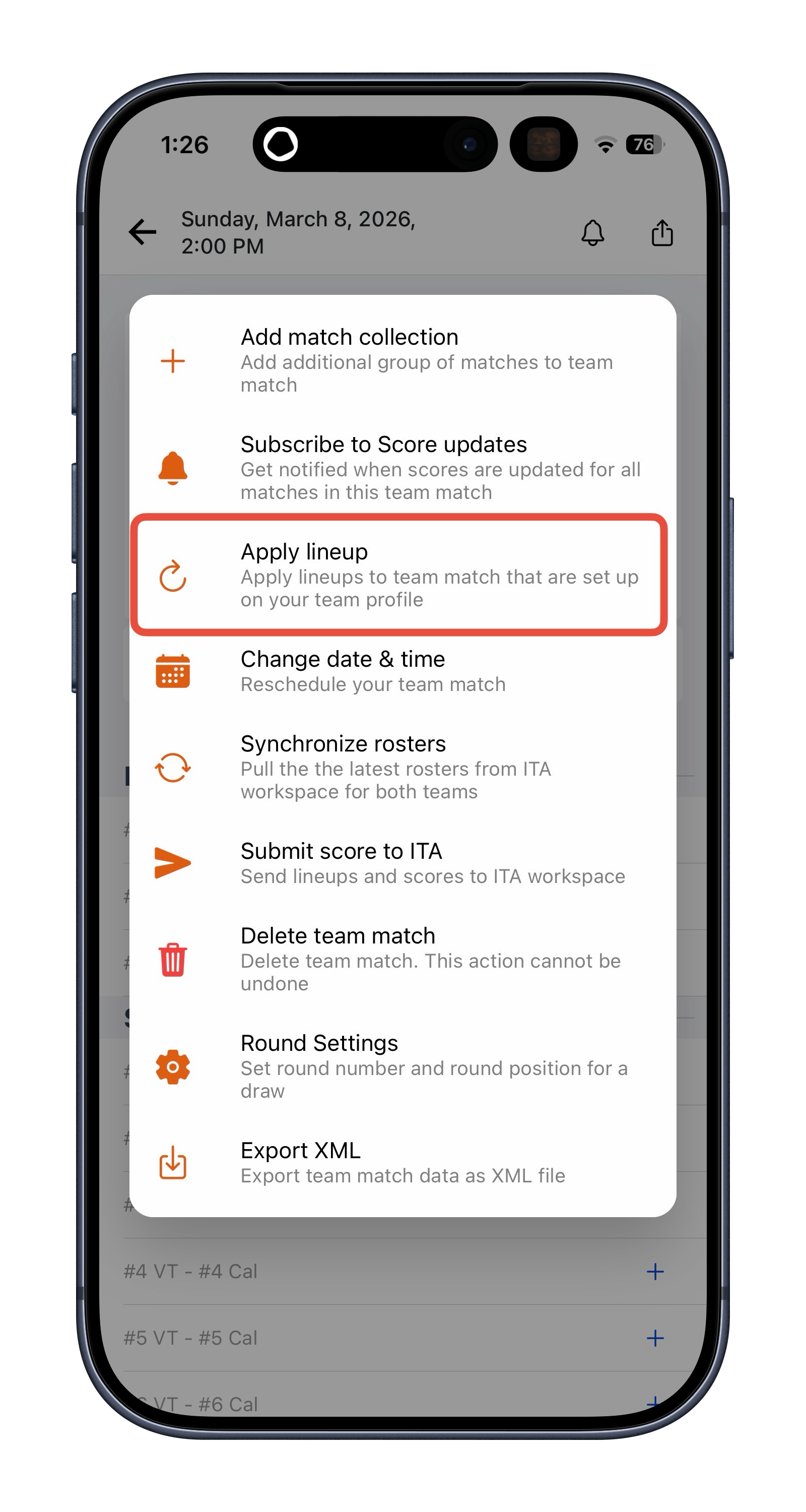
5.2 "Apply lineup"
6. Click Setting Next to the Court to Connect the Camera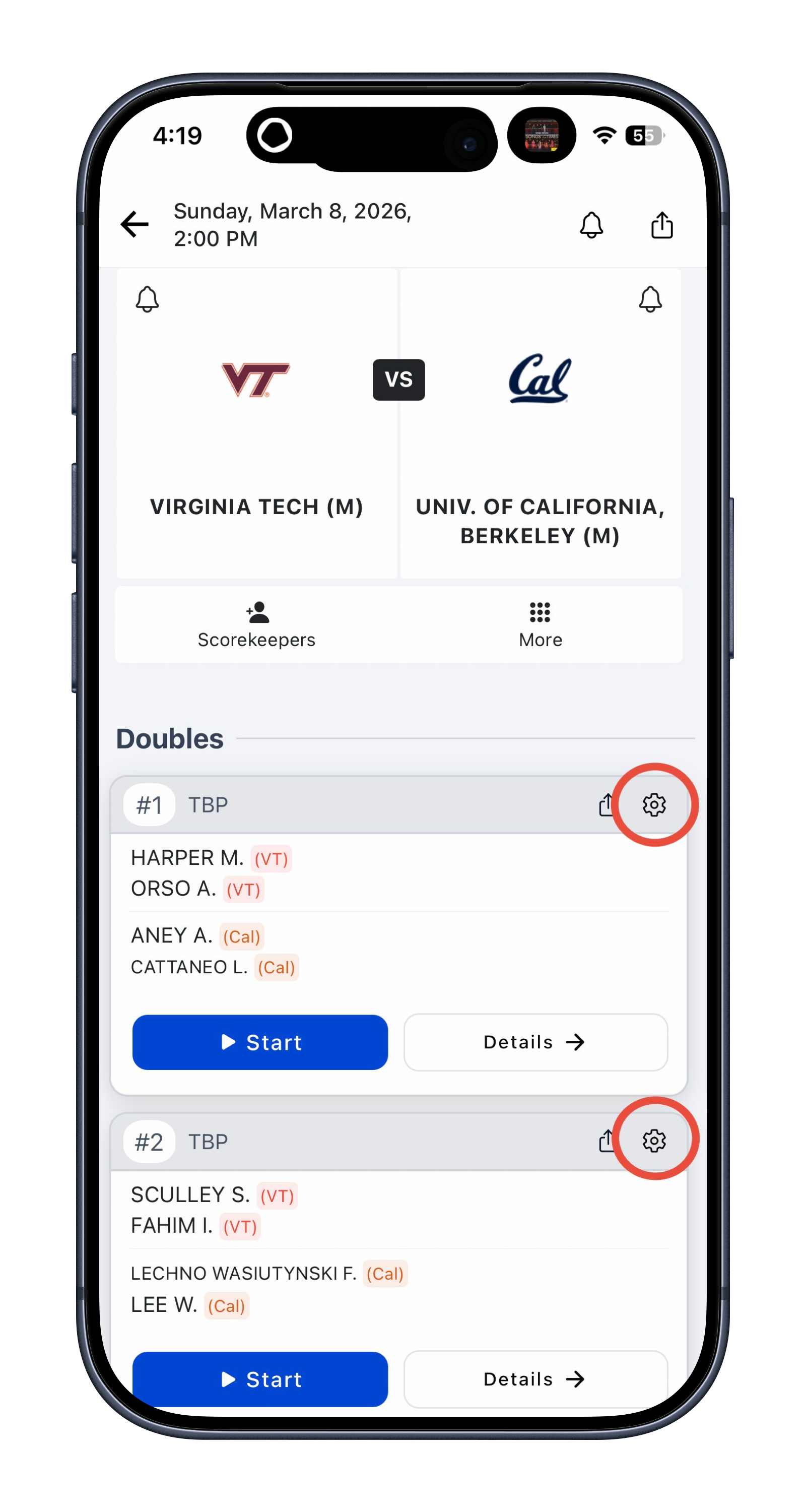
7. Click Manage Cameras & Scoreboards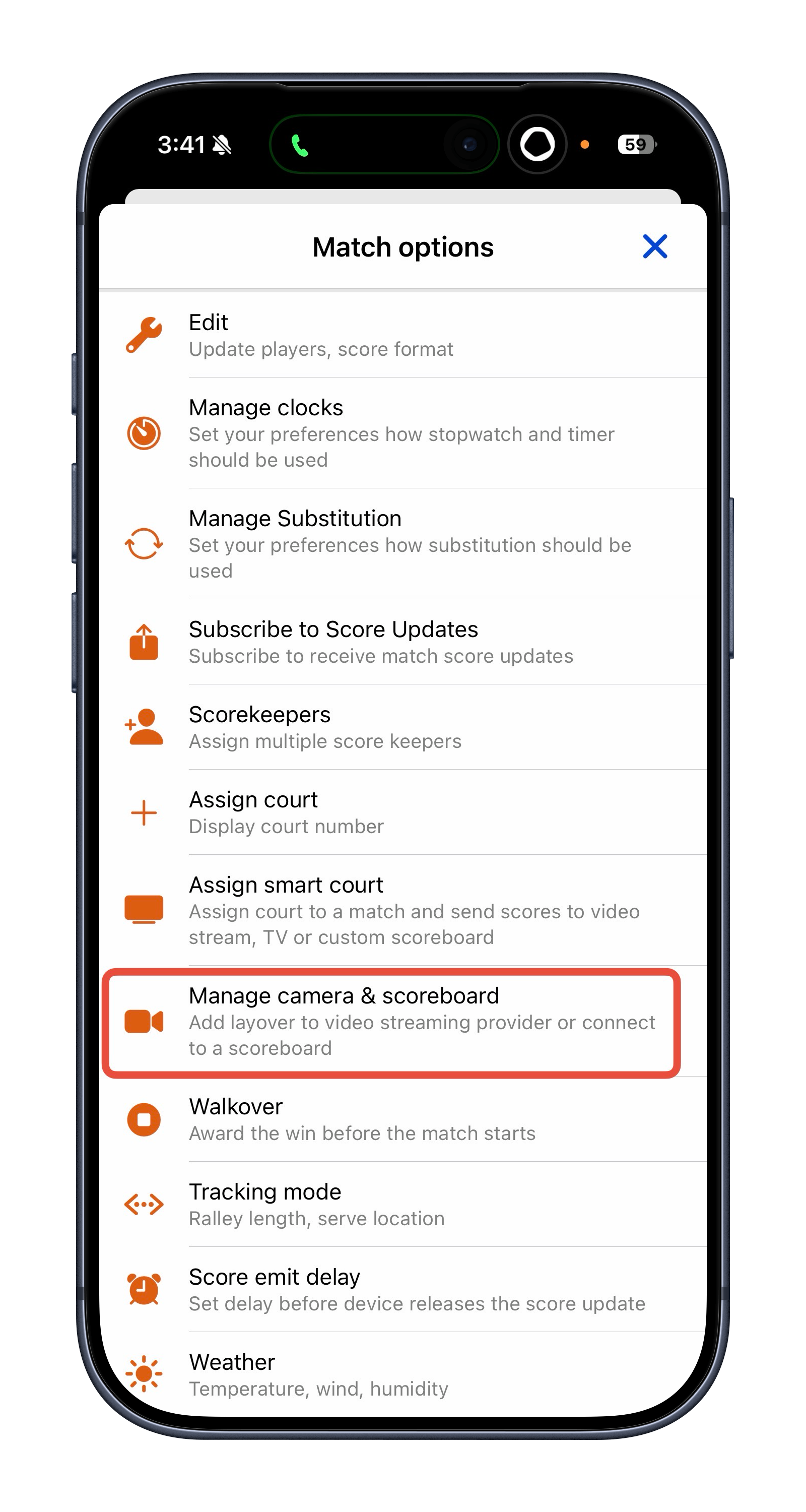
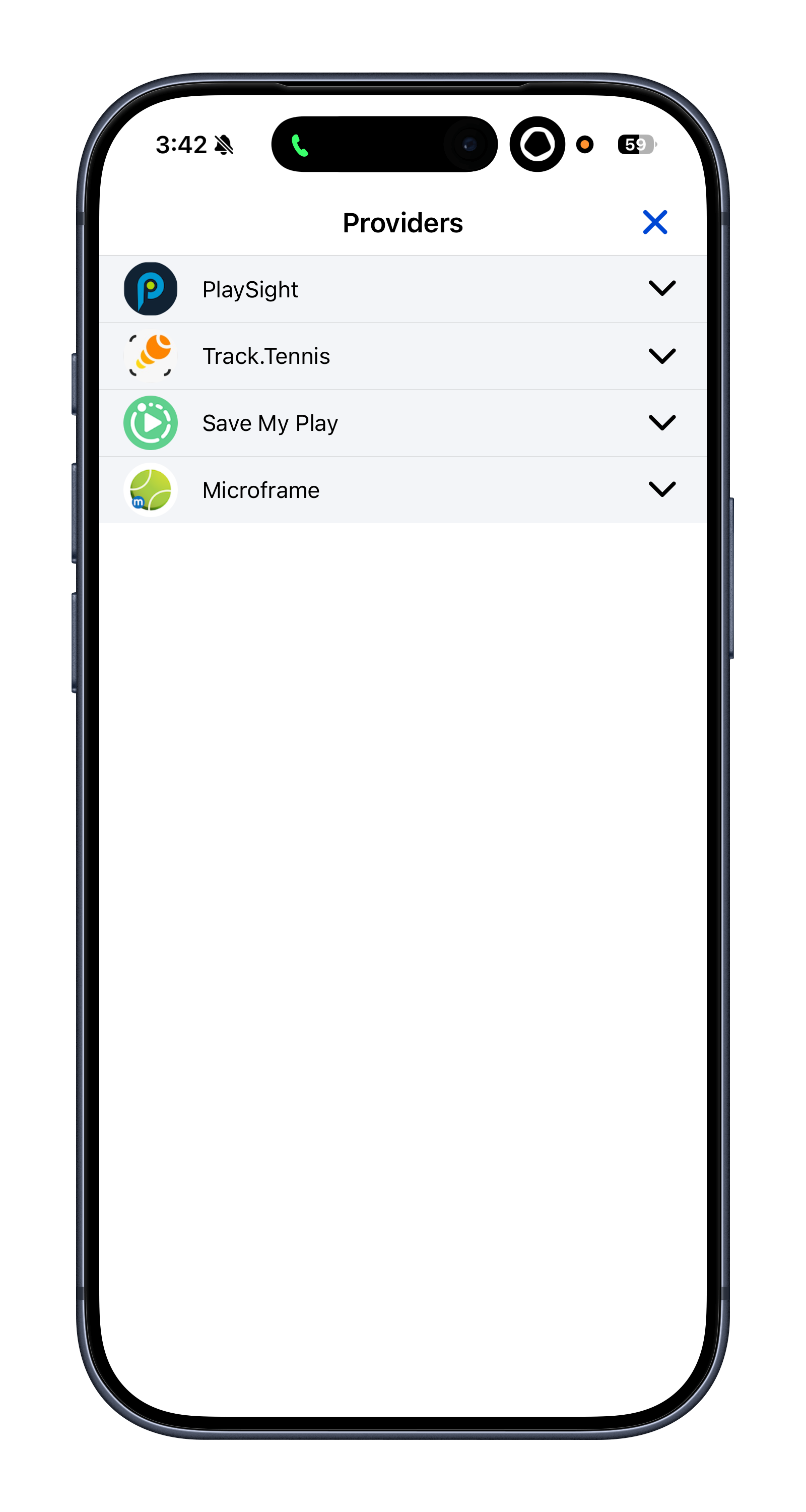
8. Find your stream provider from the list.
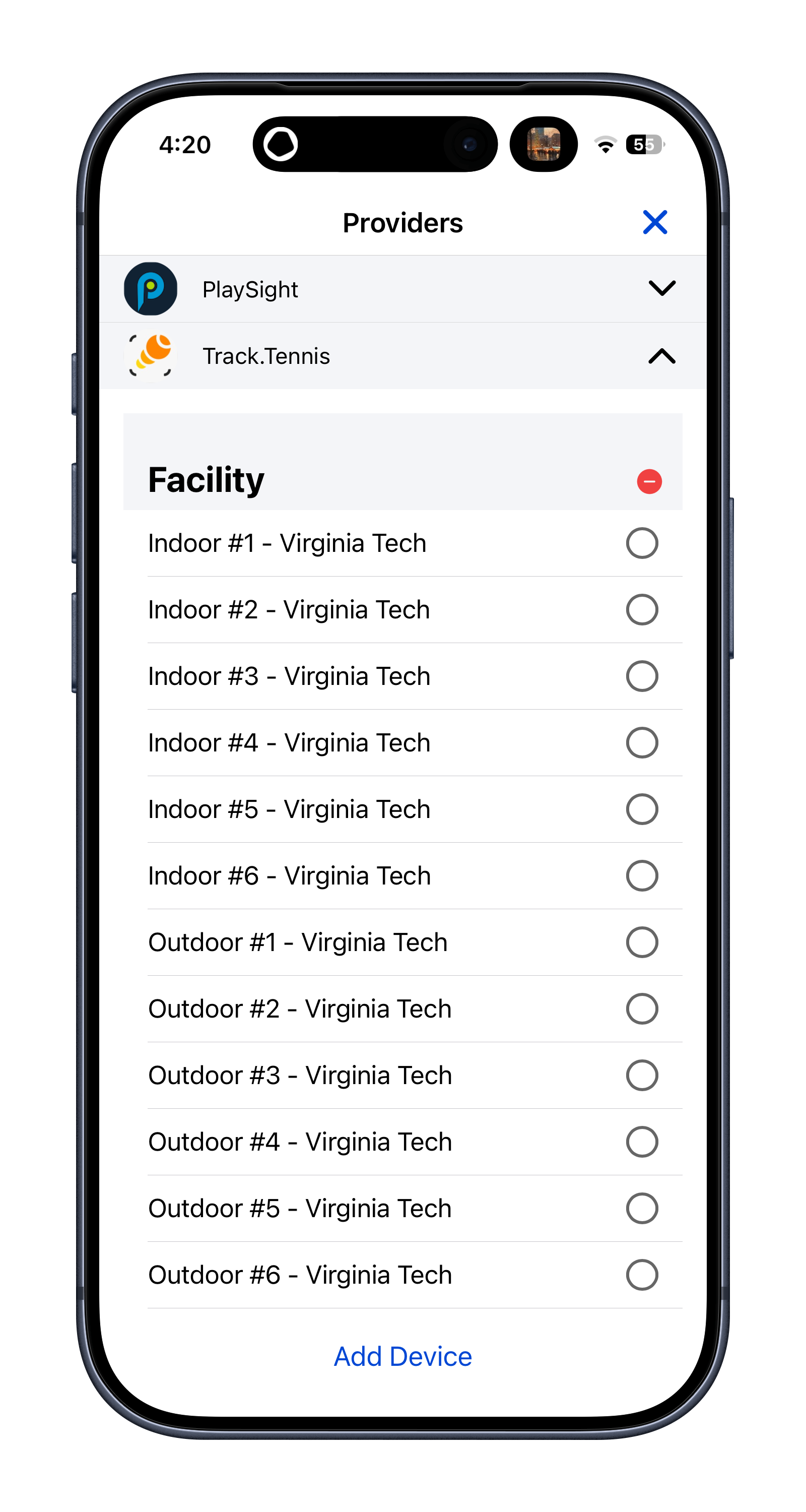
Follow the instructions provided in the drop-down menu under each provider. You will be asked to either insert a token or copy and paste a link from IONSport (for PlaySight).
9.Done!
If the token was inserted correctly, you will see a green camera icon next to the match, indicating that the camera has been successfully connected.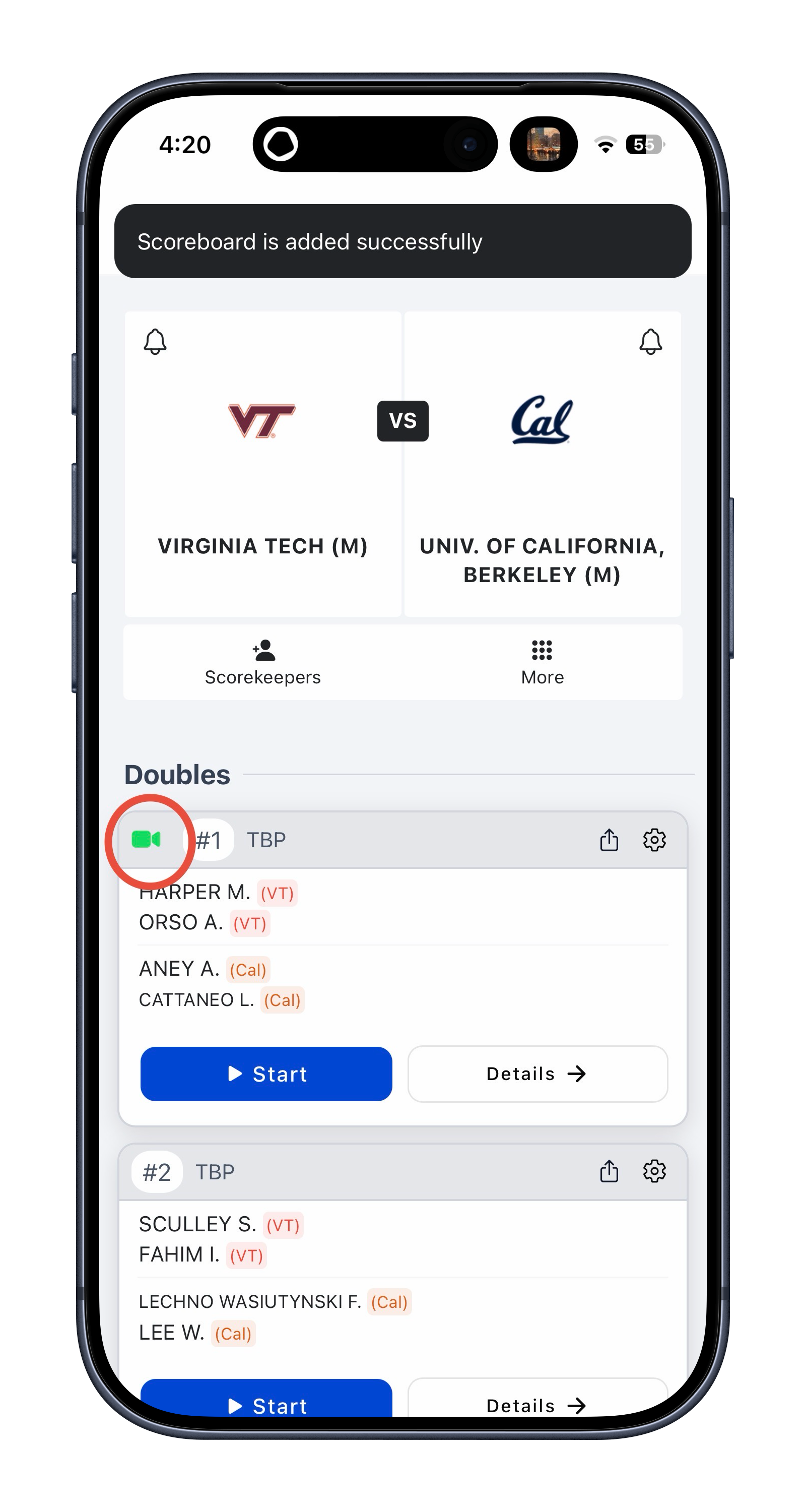
Was this article helpful?
That’s Great!
Thank you for your feedback
Sorry! We couldn't be helpful
Thank you for your feedback
Feedback sent
We appreciate your effort and will try to fix the article