Claiming Your Tournament

Created by Steve Adler, Modified on Mon, 22 Jun at 2:04 PM by IONSport Support

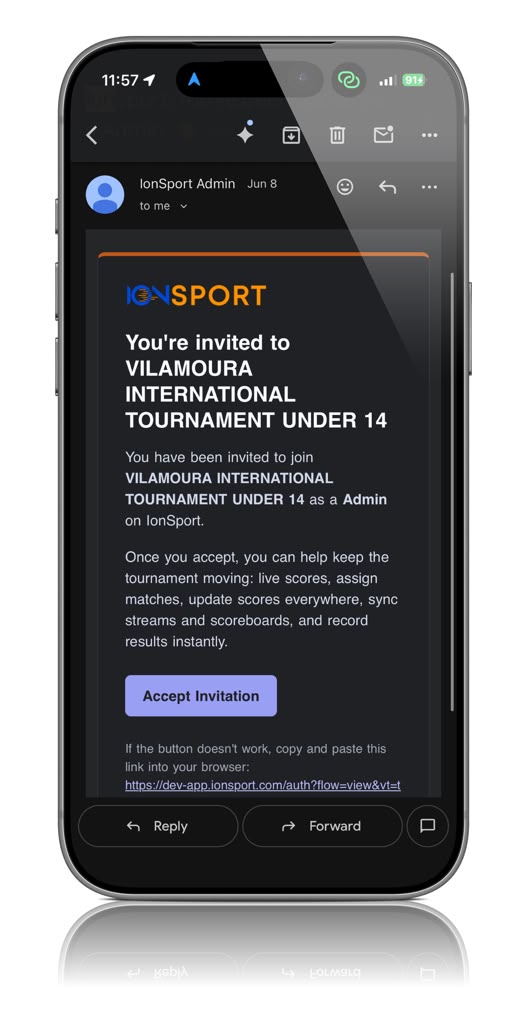
Step 1: Accept the Tournament Invitation

You will receive an email notifying you that you have been added as an administrator for the tournament. Open the email and accept the invitation to gain access to the tournament.


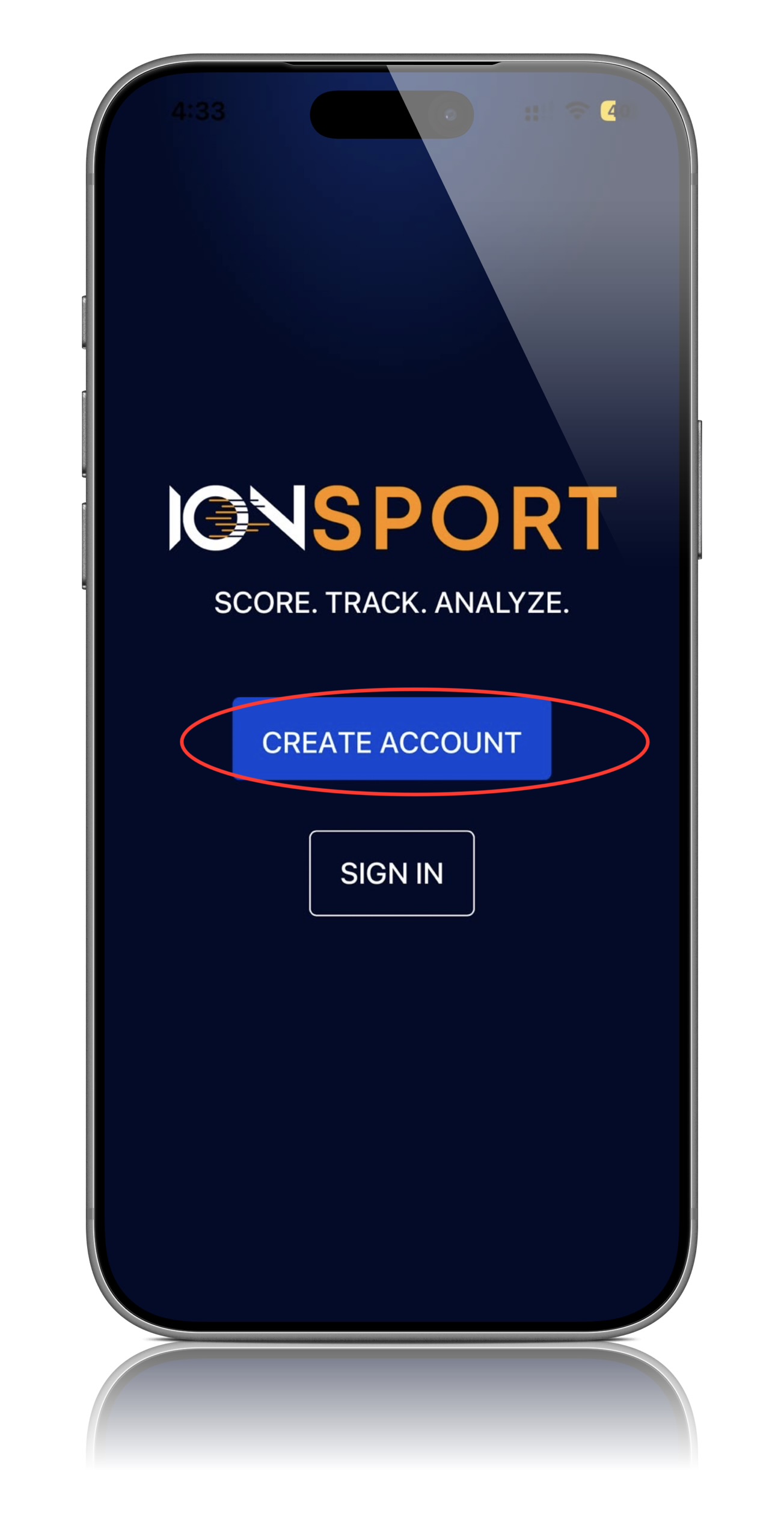
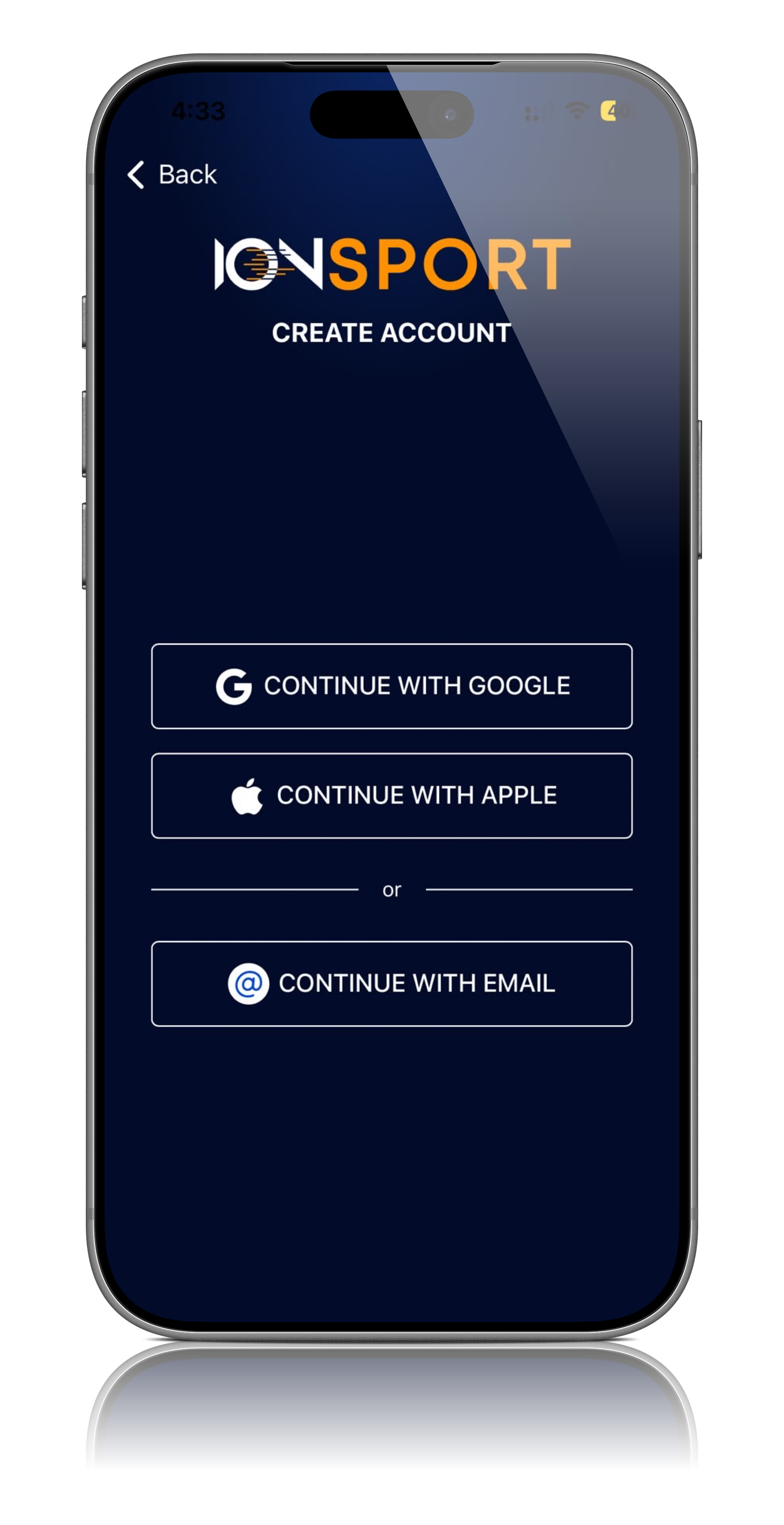
Step 2: Create an IONSport Account

If you do not already have an IONSport account, you will be prompted to create one. Create your account using the same email address that received the tournament invitation. If you already have an account, simply log in using your existing credentials


Step 3: Confirm Tournament Access

Once the invitation has been accepted and your account is linked, the tournament will be associated with your profile and made available within the platform.


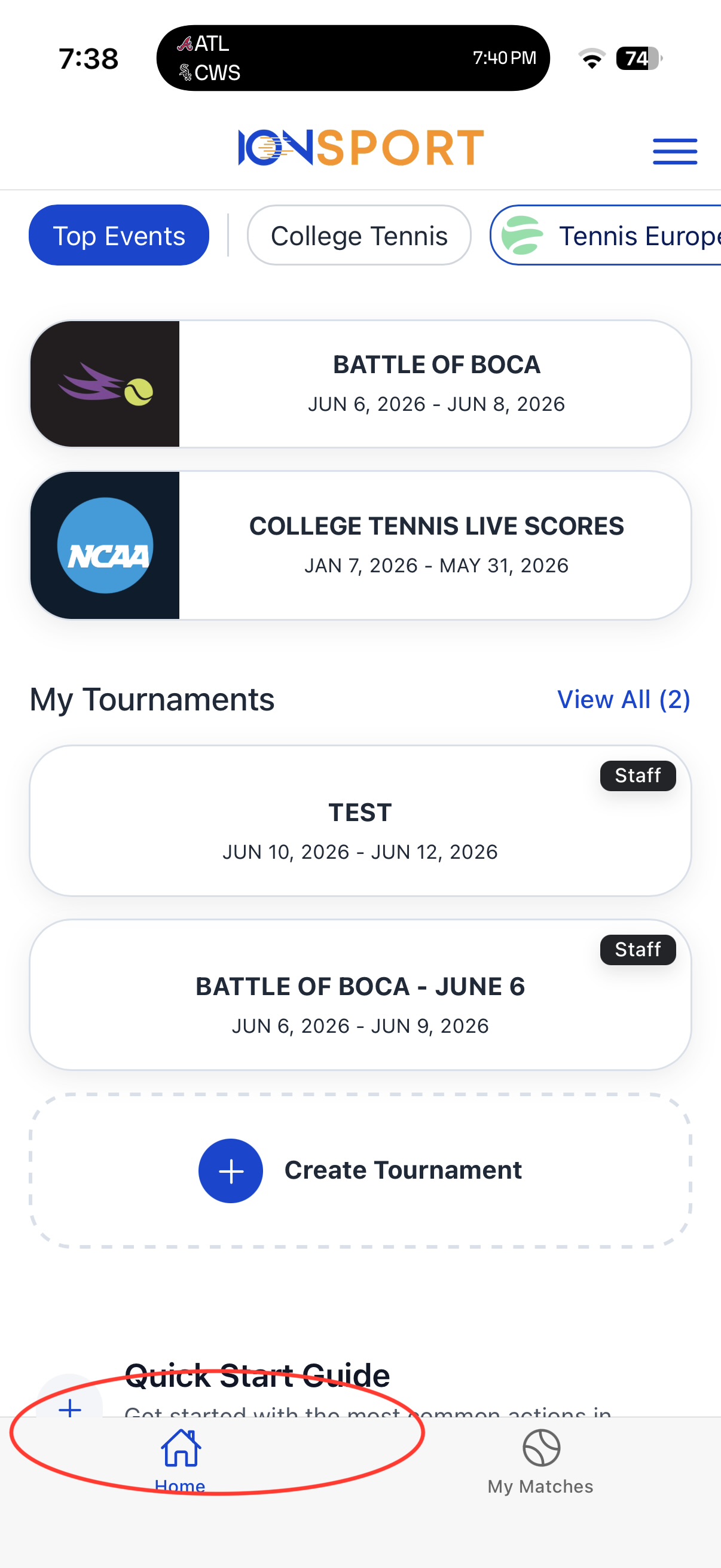
Step 4: Navigate to the Home Page

Return to the home page of the application after accepting the invitation and signing in.


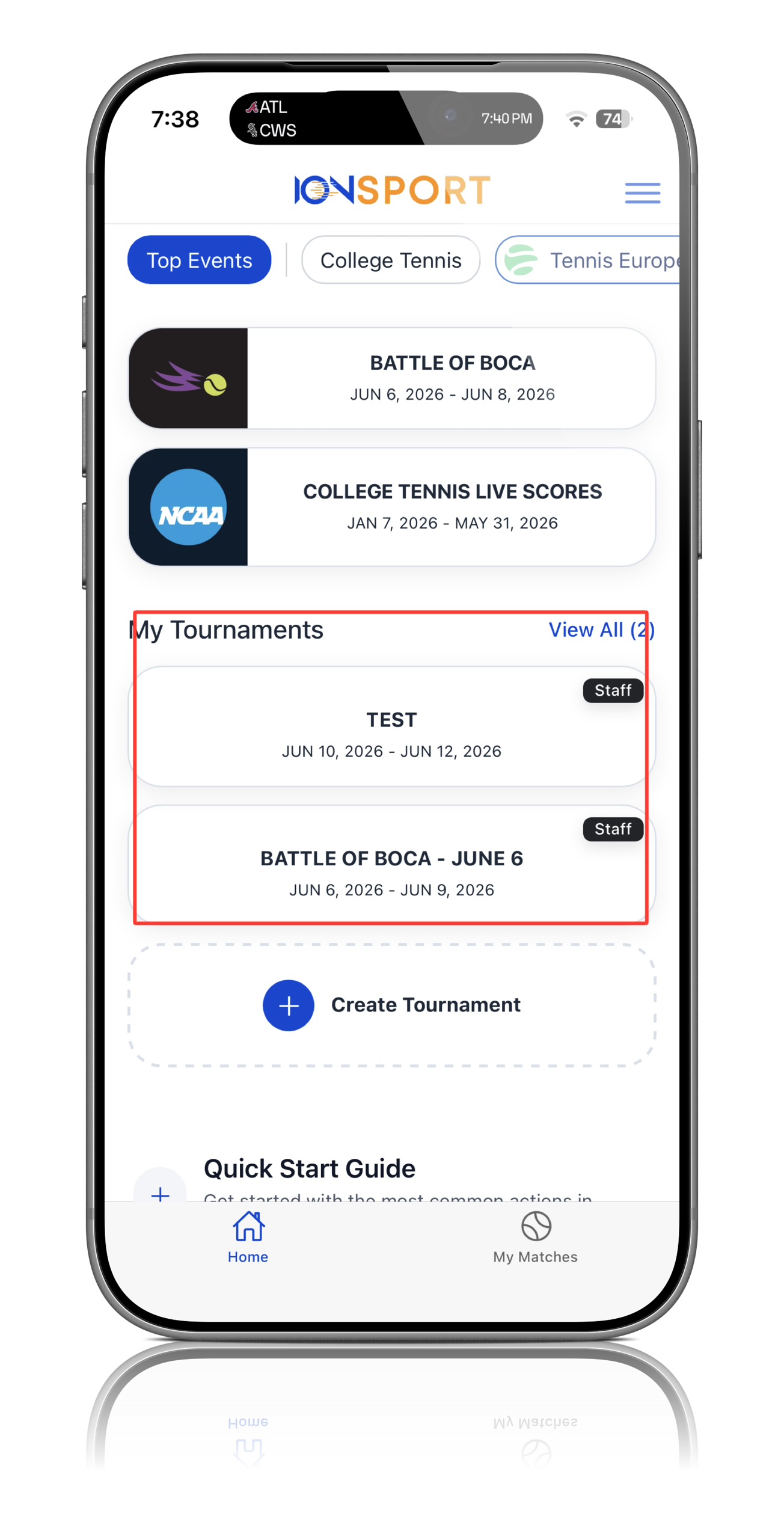
Step 5: Locate My Tournaments

On the home page, fine the My Tournaments section


Step 6: Access Your Tournament

Your tournament will now appear under My Tournaments and is ready for use. Select the tournaments to begin managing matches, officials, schedules, and other tournament operations.

Note: Once a tournament has been claimed and assigned to your account, it will remain accessible through the My Tournaments section for quick access and management.


Was this article helpful?

That’s Great!

Thank you for your feedback

Sorry! We couldn't be helpful

Thank you for your feedback

Let us know how can we improve this article!

Select at least one of the reasons
CAPTCHA verification is required.

Feedback sent

We appreciate your effort and will try to fix the article